
Power Query often automatically creates steps that at first glance seem useful. The problem starts when the data source changes, but the query still relies on the old structure.
Such problems are most often caused by two steps:Changed TypeandRemoved Columns. If you don’t understand them, a report may work today but start breaking after the nextRefresh.
If you’re just starting to work with Power Query, it’s worth first reading:what Power Query is and why it matters before analysis.
What automatic Changed Type is
When importing data, Power Query tries to automatically guess the column types. For example, it may decide that one column is a number, another is a date, and a third is text.
Then Power Query automatically creates aChanged Type step. This means that from that point in the query, Power Query expects the columns to have certain data types.
The main problem: Power Query often decides based on the current file, not on how the source might look in the future.
Why Changed Type can cause errors
Imagine that today a column contains only numbers. Power Query automatically assigns it theWhole Number type. Everything works fine.
But the next time the data is refreshed, a text value appears in the same column, for exampleN/A. Power Query still tries to convert it to a number, and then an error appears.
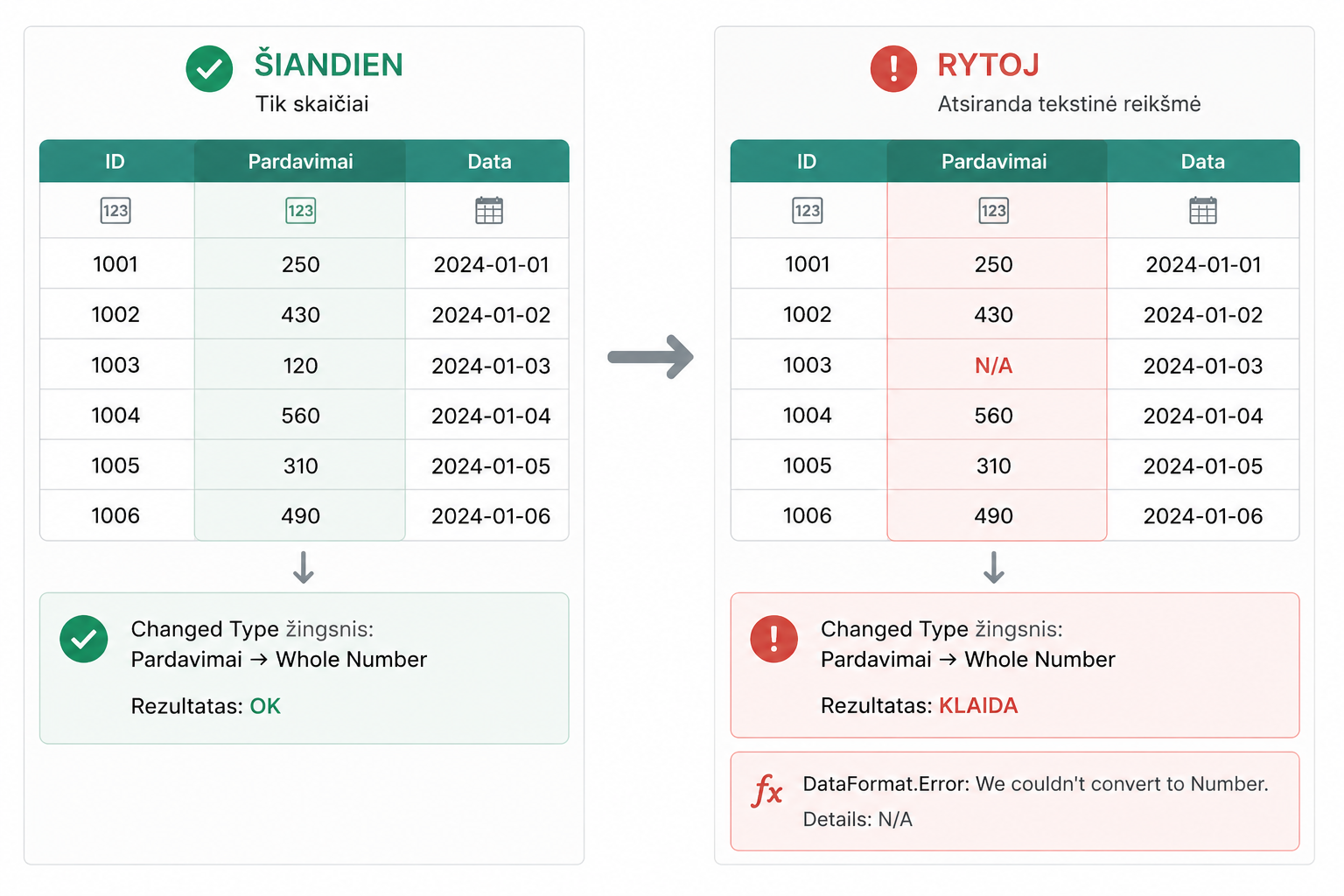
This often happens with sales, price, date or ID columns. At first everything looks tidy, but a single unexpected value is enough for the refresh to start returning errors.
That is why data types are very closely tied to data quality. More on this:how to prepare a proper dataset for working in Power Query.
How to change data types more safely
A better practice is not to rely solely on the automatically created Changed Type step.
It’s often worth:
- checking the automatic Changed Type step;
- deleting it if it was created too early;
- first tidying up the columns and rows;
- assigning data types manually at a later stage.
In practice, this sequence is often more reliable:
- first remove unnecessary rows;
- select the columns you need;
- tidy up the names;
- and only then change the data types.
If you want to better understand how Power Query steps are executed one after another, it’s worth reading:the logic of the Power Query Editor and Applied Steps.
Remove Columns pitfalls
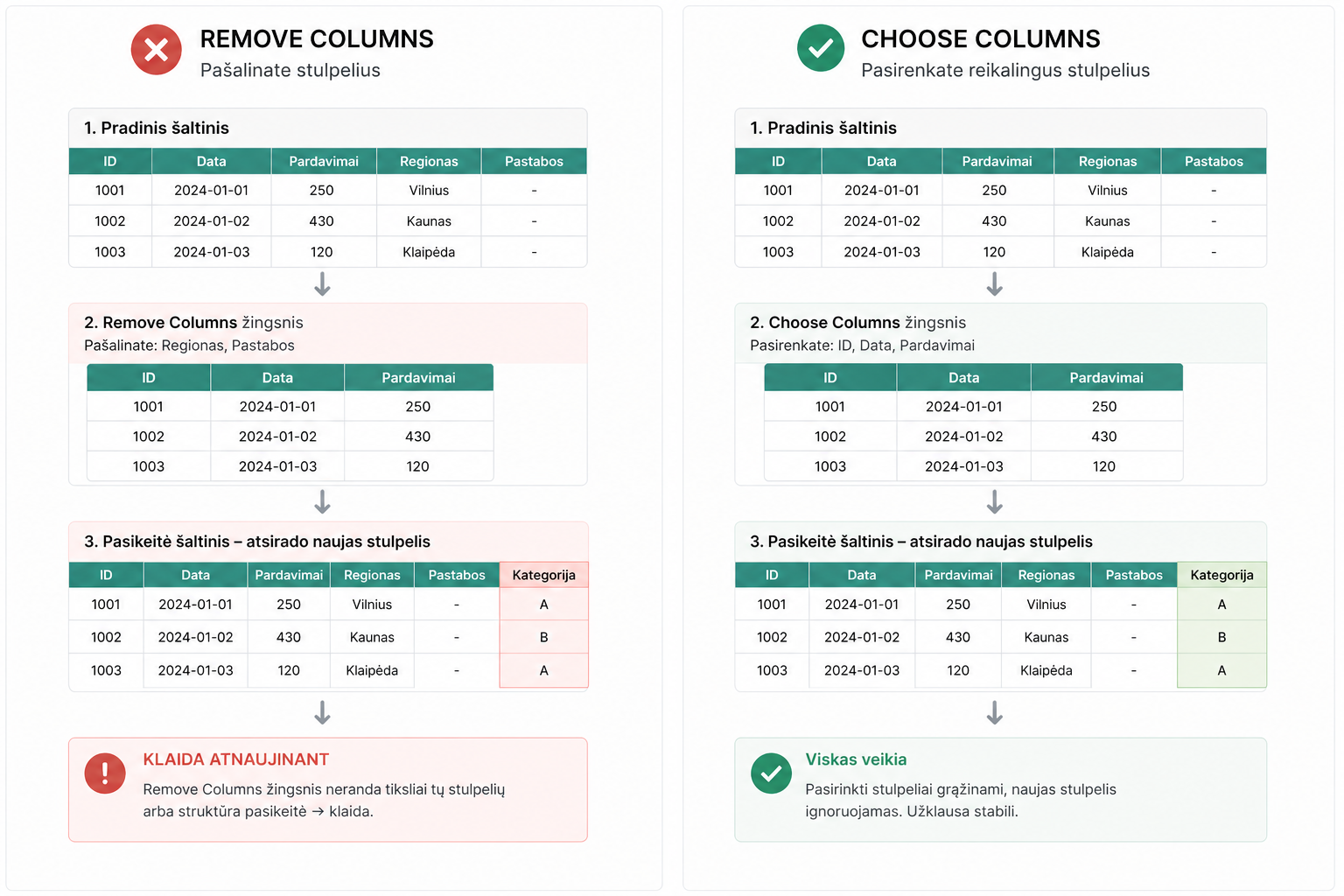
Remove Columnsremoves the selected columns by their names. This looks convenient, but it can become a problem if the data source changes.
For example, today the file has the columns: ID, date, sales, region and notes. You remove region and notes. Everything works.
But a month later a new column appears in the source, or an old name changes. Then the query may start returning errors or behaving differently than you expect.
When it’s better to use Choose Columns
Choose Columnsworks the other way around: instead of specifying what to remove, you specify what you want to keep.
This is often a more stable solution, because:
- you select only the columns needed for analysis;
- new extra columns are ignored;
- the query becomes clearer;
- there’s a lower chance that a new column will break the logic.
This is especially useful when you work with files that are regularly refreshed or exported from other systems.
A practical comparison
You can usually think of it like this:
- Remove Columnsis suitable when the source structure is completely stable;
- Choose Columnsis often better when the source may change;
- the more automatic refreshes there are, the more important it is to choose more stable logic.
If you later merge this data with other tables, a stable structure becomes even more important. More on merging tables:how Merge and Append differ in Power Query.
Why this matters
Power Query solutions are usually used more than once. They have to work every time you pressRefresh.
That is why automatic steps must be treated with caution. They’re convenient at the start, but can become a weak point when the data source changes.
Once you get control over the Changed Type and Remove Columns logic, you get:
- fewer unexpected errors;
- more stable refreshes;
- more reliable Power BI reports;
- a clearer transformation structure.
Conclusion
Changed Type and Remove Columns are useful Power Query steps, but they can cause problems if used automatically and thoughtlessly.
A more reliable practice is to first tidy up the data structure, select the columns you need, and only then explicitly assign the data types.
The clearer and more stable the sequence of transformations, the fewer errors will appear when refreshing data in the future.
Power Query cheat sheet: automate your report
The key steps, the 5 common mistakes, and when automating is worth it.
- PDF · 2 pages, practical
- No spam — value only