
If Power Query sometimes “breaks”, returns errors or behaves unpredictably, the problem usually lies not in the tool itself, but in the data.
Very often an Excel table is prepared for the human eye, but not for analysis: merged cells, several header levels, different data types or several values in one cell.
If you’re just starting to work with this tool, it’s worth first reading:what Power Query is and why it matters before analysis.
What a proper dataset is
A proper dataset– is a structure that Power Query can easily understand and process.
Simply put:
- each column has one clear meaning;
- each row is a single record;
- each cell has one value;
- column names are clear and consistent;
- data types don’t get mixed up.
If these rules aren’t followed, even simple actions – filtering, grouping or merging tables – can start causing problems.
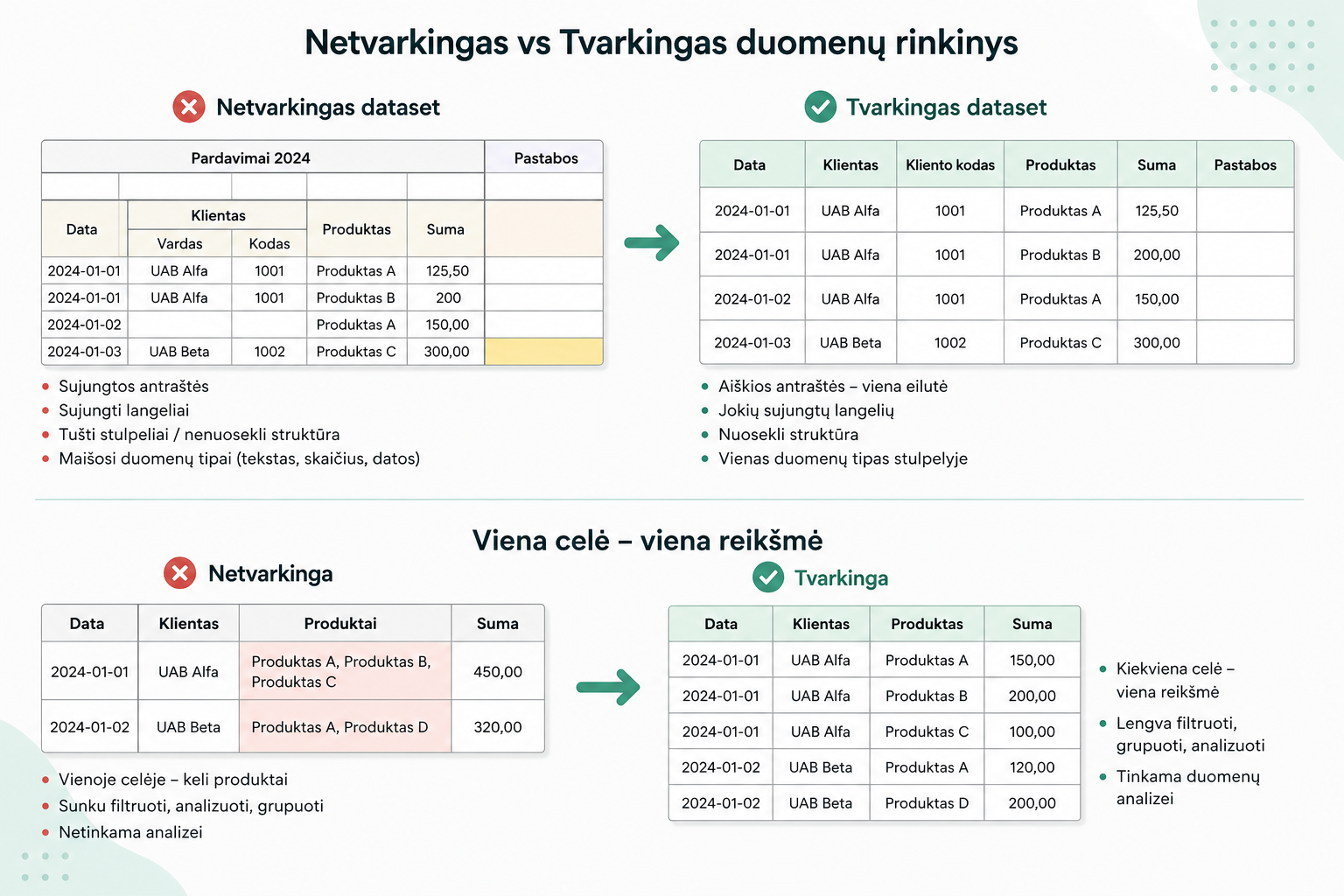
1. One header – one column
Each column must have a clear name. Power Query needs to understand where the data starts and what each column means.
Problems most often arise when:
- headers span several rows;
- some column names are empty;
- merged headers are used;
- there are extra rows above the data in the table.
A simple test: if you can applyUse First Row as Headersand the table becomes clear, the structure is probably fine.
2. No merged cells
Merged cells in an Excel file can look nice, but in Power Query they often cause problems.
Power Query doesn’t see merged cells the way a person does. Often only one row has a value, and the others becomenull.
The solution:
- unmerge the merged cells;
- useFill DownorFill Up;
- keep one clear header row.
3. One data type per column
A column must contain values of one type: only dates, only numbers or only text.
If numbers, text and dates are mixed in the same column, errors or unexpected results can appear when the data is refreshed.
More on this:why it’s important to set data types correctly in Power Query.
4. Null values – that’s normal
Nullis not an error. It simply means there is no value.
It’s important to distinguish:
- nullfrom0– zero is a value;
- nullfrom empty text;
- nullfrom an error value.
Power Query lets you filter, replace or use null values in conditional columns.
5. One cell – one value
One of the most common mistakes is keeping more than one value in a single cell.
For example, one cell might contain several products, several customers or several periods. To a person this may seem understandable, but such a structure is unsuitable for analysis.
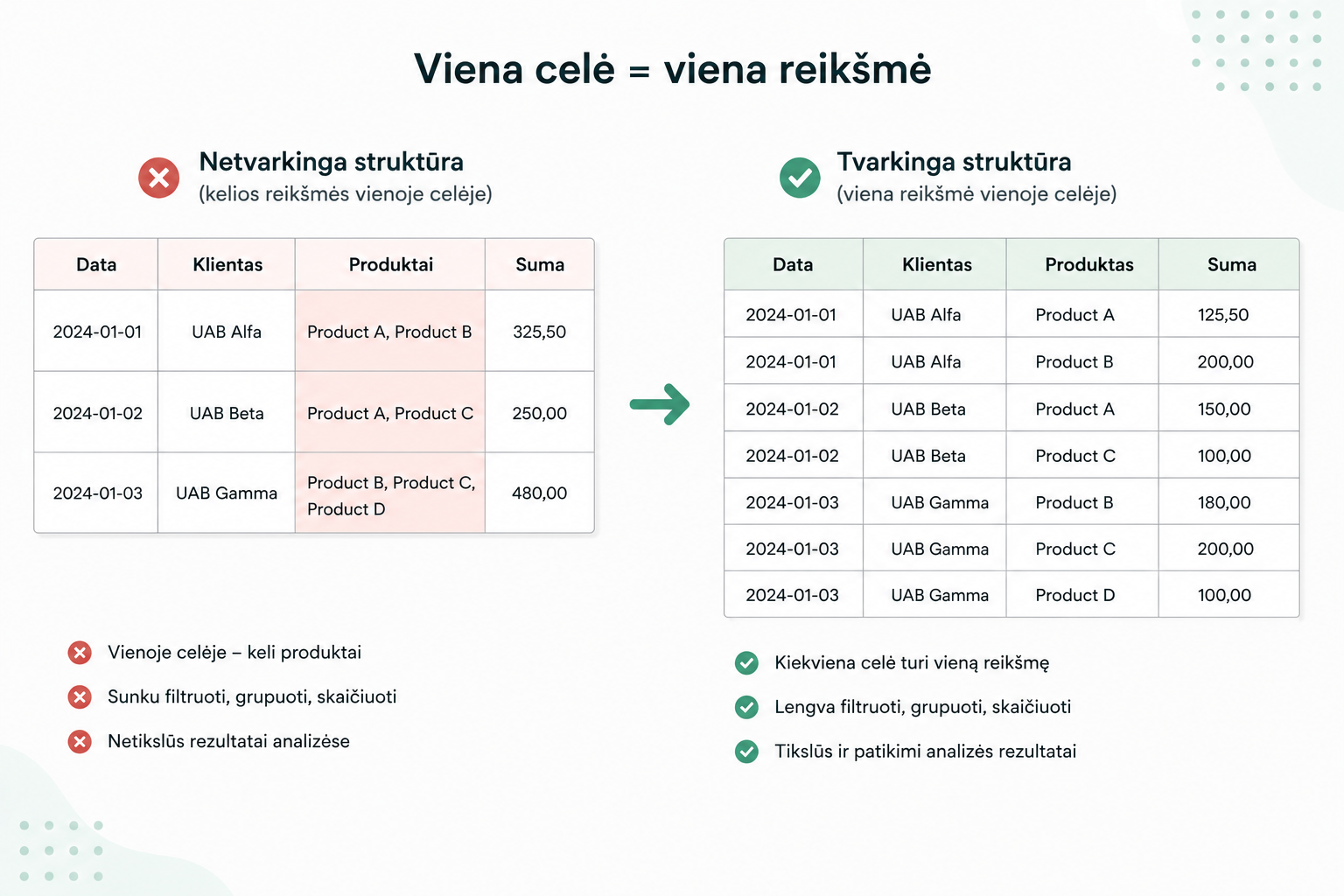
Such data:
- is hard to filter;
- is grouped incorrectly;
- causes errors in calculations;
- makes later analysis in Power BI harder.
Such situations can often be fixed usingSplit ColumnorUnpivot. More on this:how to fix messy tables using Unpivot and Pivot.
Why this matters in Power Query
A proper dataset lets Power Query work stably. When the data structure is clear, it’s less likely that a query will break after the next refresh.
Tidy data is especially important when you want to:
- group data by categories or periods;
- merge several tables;
- create automated refreshes;
- use the data in a Power BI model.
If you plan to build summaries later, it’s worth reading:how to group data with Group By in Power Query.
If you need to merge several tables, this will help:how Merge and Append differ in Power Query.
What to read next
Conclusion
A proper dataset is the foundation of all analysis. If you start from a messy source, you’ll lose a lot of time fixing errors in Power Query transformations.
If the data is prepared correctly, Power Query works more stably, transformations become clearer, and refreshes become more reliable.
In other words: if you start from a tidy source, most problems disappear before you even begin more complex transformations.
Power Query cheat sheet: automate your report
The key steps, the 5 common mistakes, and when automating is worth it.
- PDF · 2 pages, practical
- No spam — value only