
Power Query is a powerful tool, but it usually „breaks” not for complicated reasons, but because of a few of the same, recurring mistakes. The good news: once you recognize them, avoiding them becomes very simple.
Below are the five most common Power Query mistakes I see in almost every report, and concrete ways to avoid each one.
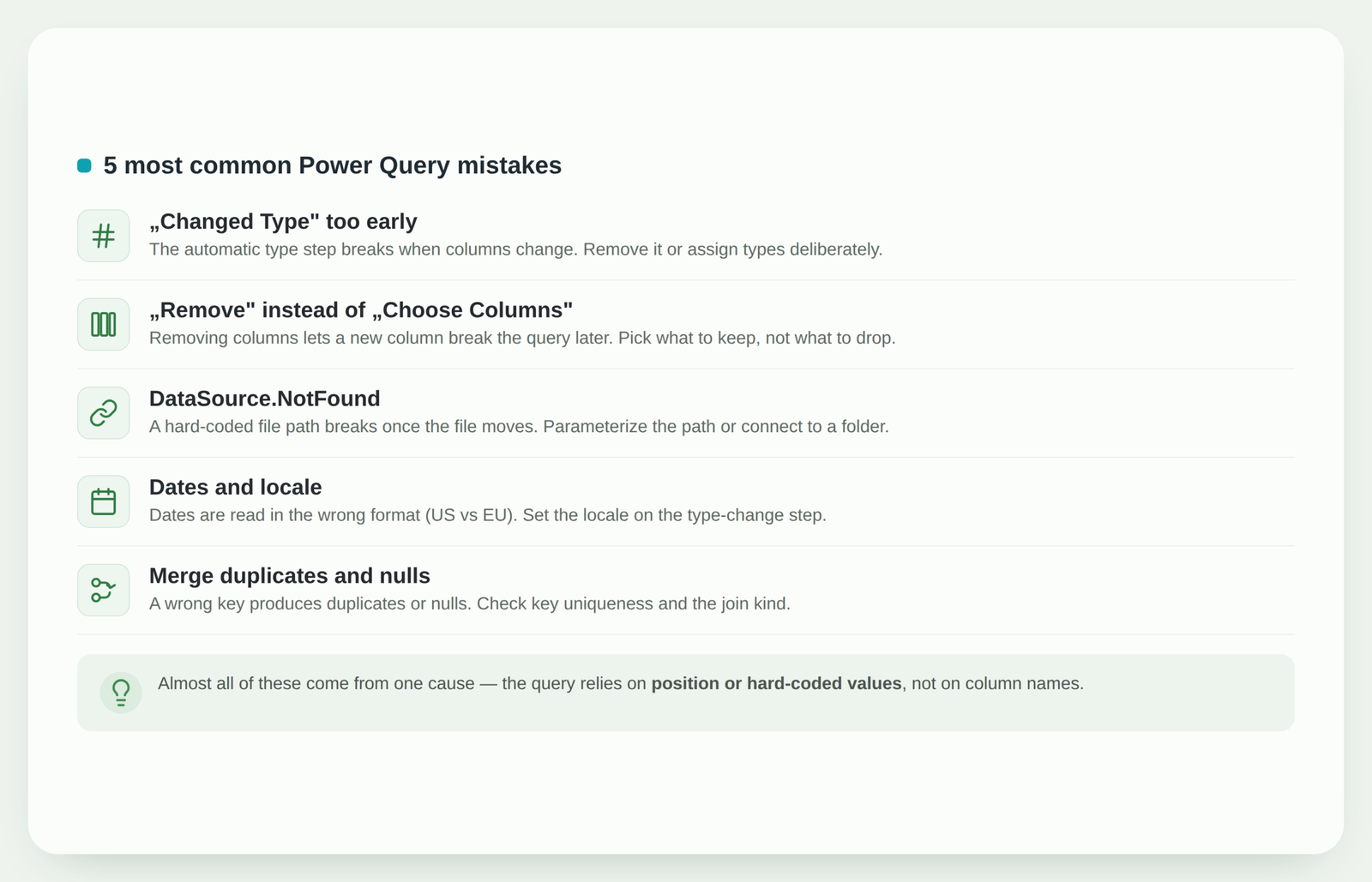
1. A „Changed Type” step added too early
As soon as you load data, Power Query automatically adds a „Changed Type” step that pins down specific columns and their types. When the source changes – a different column name or order – this step starts throwing errors.
How to avoid it: remove the automatic „Changed Type” right after loading, or assign types deliberately only to the columns you actually need, and only at the very end. The fewer hard-pinned columns, the more resilient the query.
2. „Remove Columns” instead of „Choose Columns”
When you drop unwanted columns with „Remove Columns”, Power Query remembers exactly the ones you removed. When a new column appears in the source, it slips through the filter and often breaks later steps.
How to avoid it: use „Choose Columns” and pick the columns to keep. Then any new column is simply ignored, and the query stays stable.
3. DataSource.NotFound: a hard-coded file path
This is one of the most common errors: the query points to a specific file path on your computer, and once the file moves or the folder is renamed, Power Query can’t find it and throws „DataSource.NotFound”.
How to avoid it: move the path into a parameter, or connect to a folder rather than a single file. Then moving the file or a new monthly file no longer means digging into the query.
4. Date and „locale” errors
Dates are the most common source of silent errors. If the source uses one format (e.g. MM/DD/YYYY) and your Excel uses another, „Changed Type” reads dates incorrectly: 03/04 becomes March 4th instead of April 3rd, or some dates turn into errors.
How to avoid it: when changing the type to date, use „Using Locale” and specify the right region. That way dates are always read in the format they actually arrived in.
5. A Merge that creates duplicates or nulls
When joining two tables with Merge, a common mistake is assuming the key (e.g. a customer ID) is unique when it actually repeats. The result: rows double up or unexpected null values appear.
How to avoid it: before Merge, check that the join key is unique, and consciously choose the join kind (Left Outer, Inner, etc.). When the key and join kind are right, duplicates and nulls disappear.
What to do next?
If you recognized a couple of these mistakes in your reports, here’s the good news: avoiding them almost always comes down to one principle – rely on column names and parameters, not on position or hard-coded values.
Want to see what a reliable query looks like from start to finish? Here’s how to automate an Excel report with Power Query, and a real project example shows the same principles in practice.
Conclusion
Power Query rarely „breaks” on its own – what usually breaks are the assumptions we made when building the query. These five mistakes – „Changed Type” too early, „Remove” instead of „Choose Columns”, a hard-coded path, locale and Merge keys – are responsible for the bulk of problems. Fix them, and the query becomes one that simply refreshes.
Does your query keep breaking?
If you have a Power Query report that throws errors every time, I can review its steps and rebuild it so it runs reliably – using Excel, Power Query or Power BI.
Assess automation optionsPower Query cheat sheet: automate your report
The key steps, the 5 common mistakes, and when automating is worth it.
- PDF · 2 pages, practical
- No spam — value only