
If you’re just starting to work withPower Query, these two actions are among the most important when transforming data before analysis.
1. When to use Unpivot
Unpivotis used when the data is in a “wide” format.
- Months are in columns
- Years are in columns
- Several metrics are in different columns
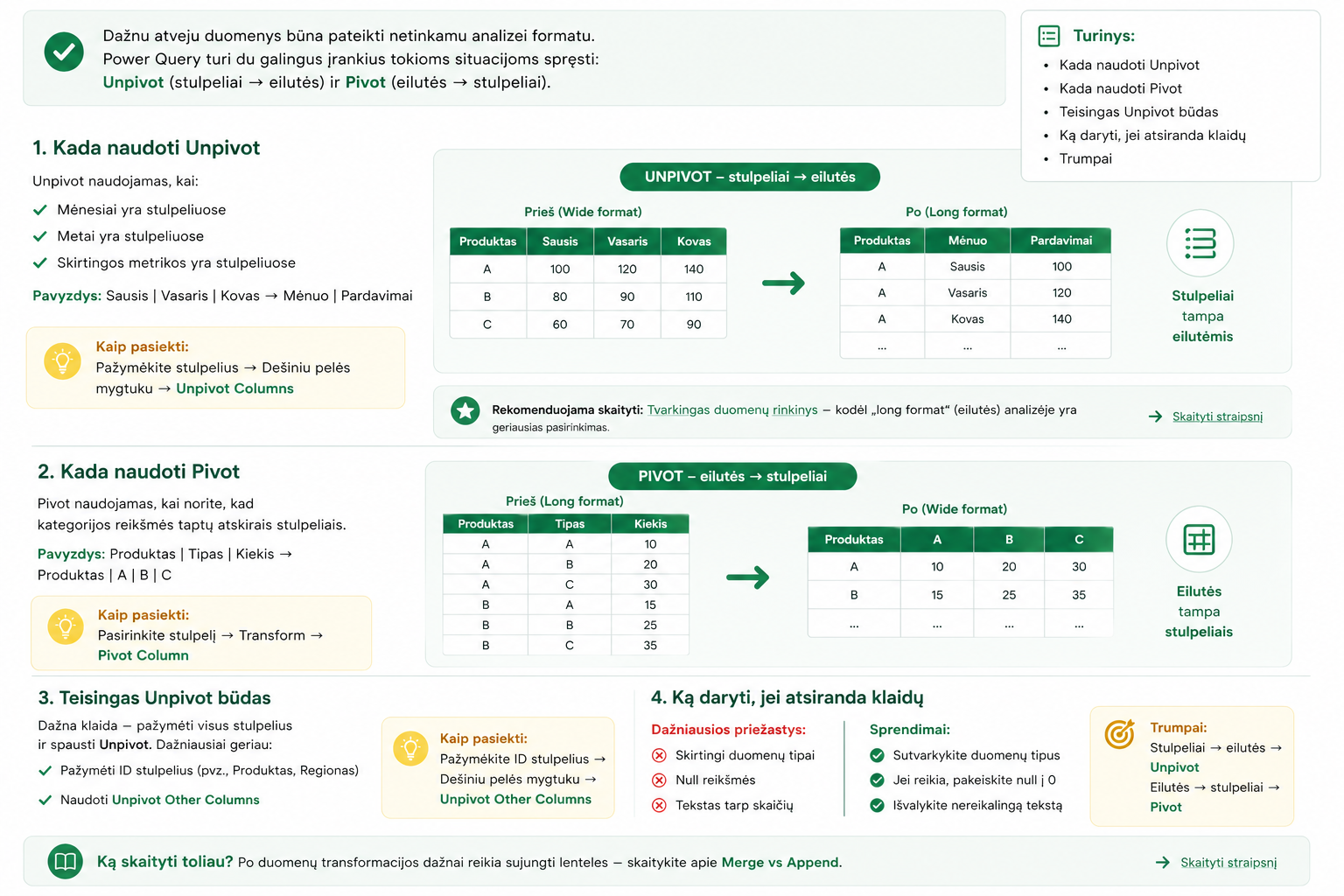
Unpivot transforms data into a “long format”, which is much more suitable for analysis and visualization.
This is the foundation for buildinga proper dataset.
Select the columns → Right-click → Unpivot Columns
2. When to use Pivot
Pivotis used when you want category values from rows to become separate columns.
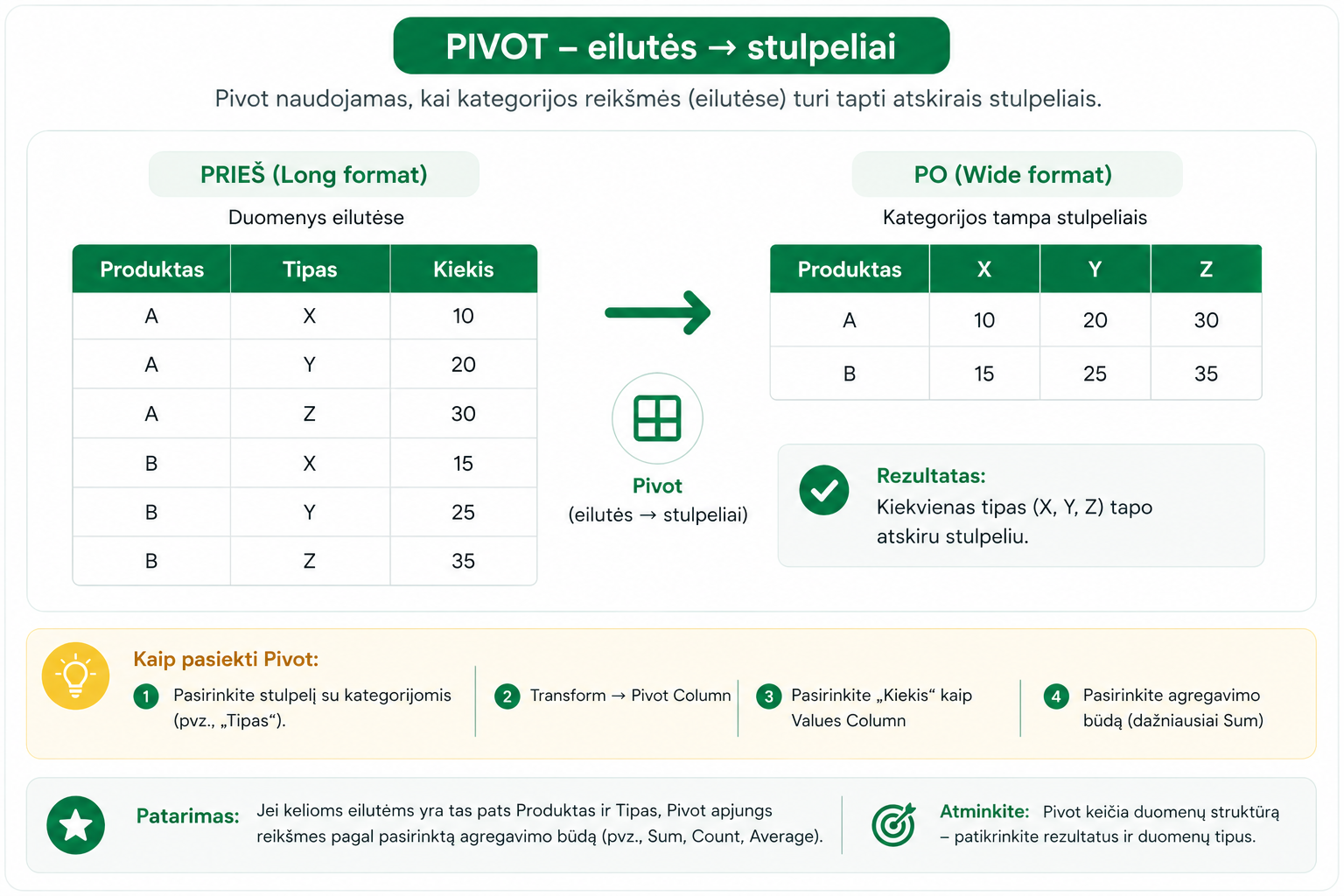
Pivot is the opposite of Unpivot – it “rotates” data from a vertical structure to a horizontal one.
Select the column → Transform → Pivot Column
3. The correct way to Unpivot
A common mistake is to select all columns and use Unpivot. It’s usually better to:
- Select the ID columns (e.g. Product, Region)
- UseUnpivot Other Columns
This lets you avoid problems when new columns appear in the data.
Before Unpivot, it’s often worth cleaning up text using:Text Transformations in Power Query
Select the ID columns → Right-click → Unpivot Other Columns
4. What to do if errors appear
The most common causes:
- Different data types
- Null values
- Text among numbers
Problems often arise due to:incorrect data types in Power Query
Columns → rows →Unpivot
Rows → columns →Pivot
What to read next
Conclusion
Unpivot and Pivot are opposite but complementary actions. They let you turn messy data into an analysis-level structure.
Once you understand these actions, it becomes much easier to build Power BI reports and work with data efficiently.
Power Query cheat sheet: automate your report
The key steps, the 5 common mistakes, and when automating is worth it.
- PDF · 2 pages, practical
- No spam — value only