
When automating Excel reports with Power Query, one of the first decisions is choosing a data import method – Folder Import or Copy/Paste.
The two most common approaches are copying a new export into a prepared RAW table, or connecting to a folder where files with the same structure are collected.
Both methods can work reliably. However, choosing the wrong import method later creates more manual work, harder maintenance, and a higher risk of errors.
Why Does the Import Method Matter?
Power Query can automatically clean data, merge tables, change formats, and prepare information for a report. But before any of these transformations, you need to decide where the query will get its new data from.
In practice, the import strategy determines:
- what the user will need to do every week or month;
- whether historical data will be accumulated;
- how easy it will be to find and fix an error;
- whether the solution will remain reliable if file names change;
- how much technical knowledge will be needed to maintain the report.
Folder Import looks more advanced, but that doesn’t mean it’s always better. Sometimes a simple RAW table and a clear Copy/Paste process is the more practical solution.
How Does the Copy/Paste Method Work?
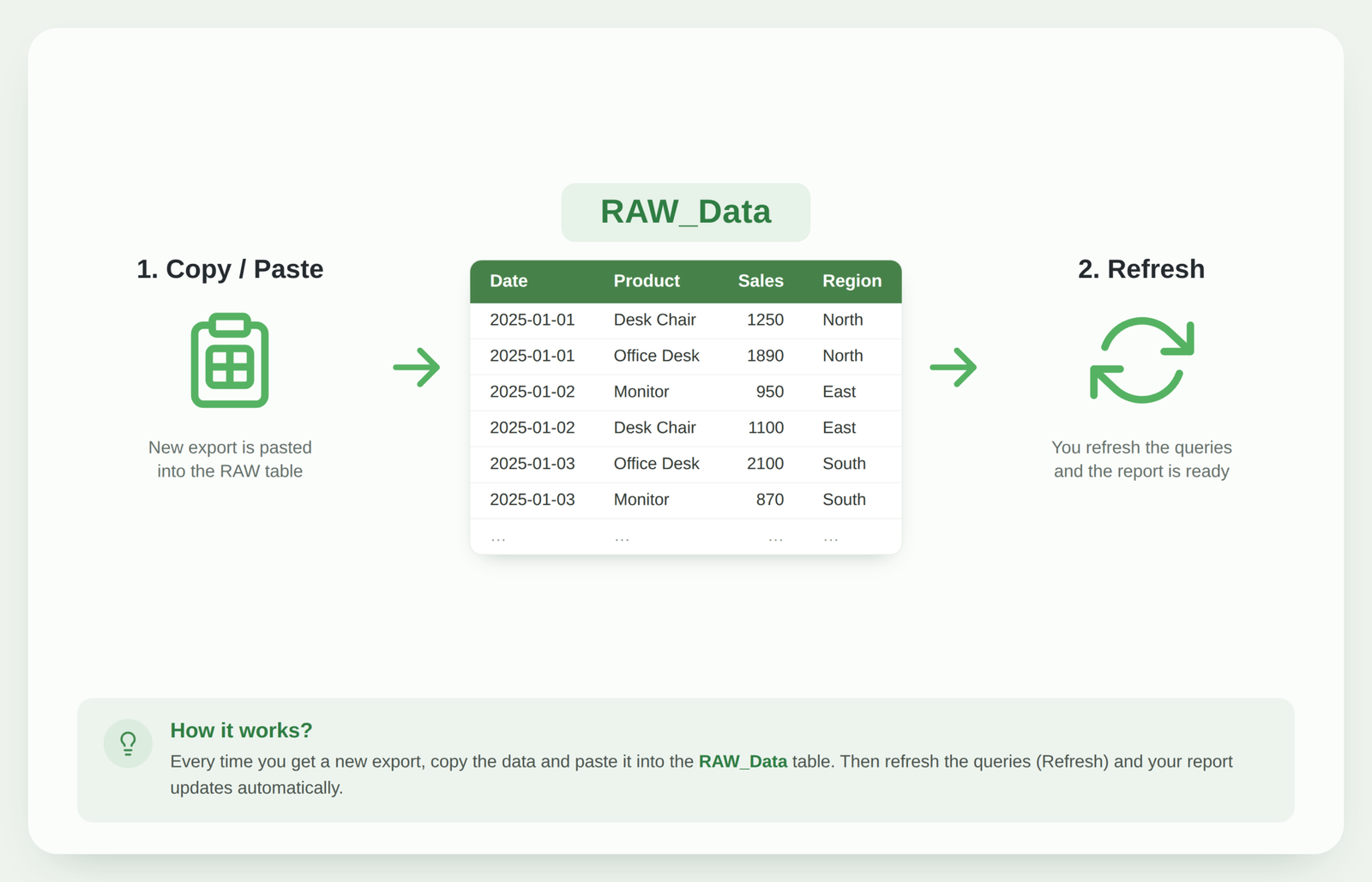
With the Copy/Paste method, you create a permanent RAW table in the Excel file. Each time a new export arrives, its old content is replaced with the new data, or, if history needs to be kept, new rows are pasted at the bottom of the table.
Power Query doesn’t connect to a file that changes every time, but to the same Excel table. So the user’s process stays simple:
- open the new export;
- copy the required data;
- paste it into the RAW table;
- click Refresh All.
When Is the Copy/Paste Method a Good Choice?
I’d usually choose this method when:
- you regularly receive one main export;
- you only need to show the latest state each time;
- there’s no need to accumulate historical exports;
- file names or locations change frequently;
- the solution will be used by someone who values a simple, visible process;
- you need to easily check what data made it into Power Query.
The biggest advantage of this method is transparency. The RAW table is visible right in the Excel sheet, so it’s easy to check its columns, row count, and pasted data.
Drawbacks of the Copy/Paste Method
Still, this isn’t a fully automatic process. Data still needs to be copied and pasted manually.
It’s also important to:
- not delete the Excel table itself;
- paste data within the table’s boundaries;
- not change column names;
- not leave old rows behind if they shouldn’t be kept;
- remove duplicates by a unique record number if needed.
Copy/Paste isn’t an “unprofessional” method. If the user’s steps are clearly documented, the RAW table is protected, and the Power Query transformations are stable, this kind of solution can be very reliable.
How Does Folder Import Work?
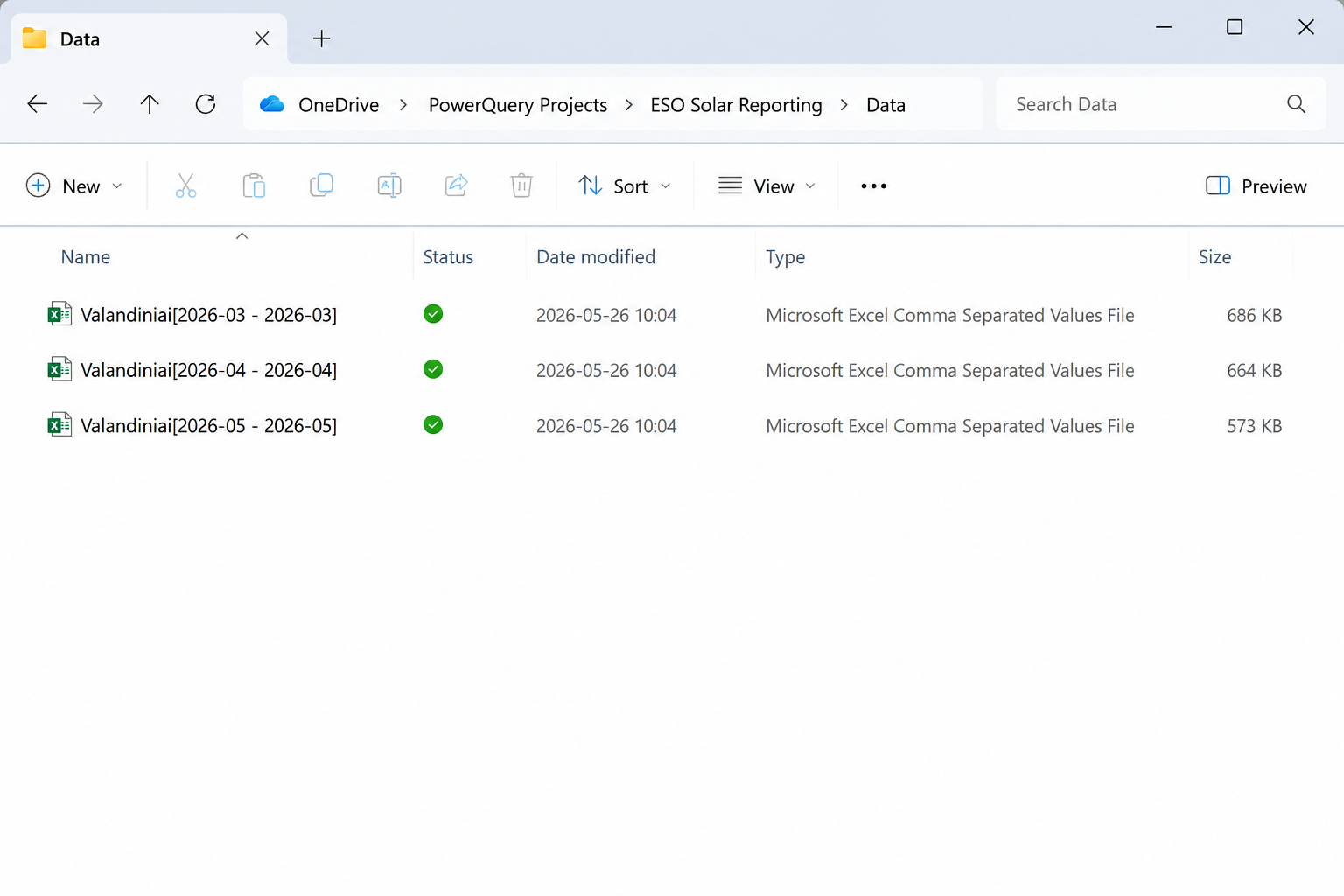
With Folder Import, Power Query connects to an entire folder instead of one specific file. New CSV or Excel files are regularly added to the folder, and Power Query automatically reads and merges them.
The user’s process becomes:
- download the new file;
- upload it to the designated folder;
- click Refresh All.
When Is Folder Import a Good Choice?
The Folder method is worth choosing when:
- you regularly receive many files with the same structure;
- each file corresponds to a separate month, department, or region;
- you need to automatically accumulate historical data;
- old files can’t be overwritten or deleted;
- you want to reduce manual copying;
- file names may change, but their structure stays the same.
Folder Import is especially convenient for periodic exports. For example, if you receive a new CSV file every month, you don’t need to connect it to Power Query separately. It’s enough to add the file to the folder that’s already in use.
Drawbacks of Folder Import
This method requires more discipline. You can’t put random files or files with a different structure into the folder, because Power Query will try to process those too.
The most common risks:
- column names change;
- extra header rows appear;
- dates or numbers in one file are formatted differently;
- an unnecessary file gets added to the folder;
- the same period gets uploaded twice, creating duplicates.
Because of this, Folder-based solutions should include file filtering, duplicate control, and clear instructions for using the folder.
Both Methods Can Lead to the Same Result
Regardless of whether data comes from a RAW table or a folder, the goal of the Power Query transformations stays the same – to produce a clean, consistently structured table for analysis and reporting.
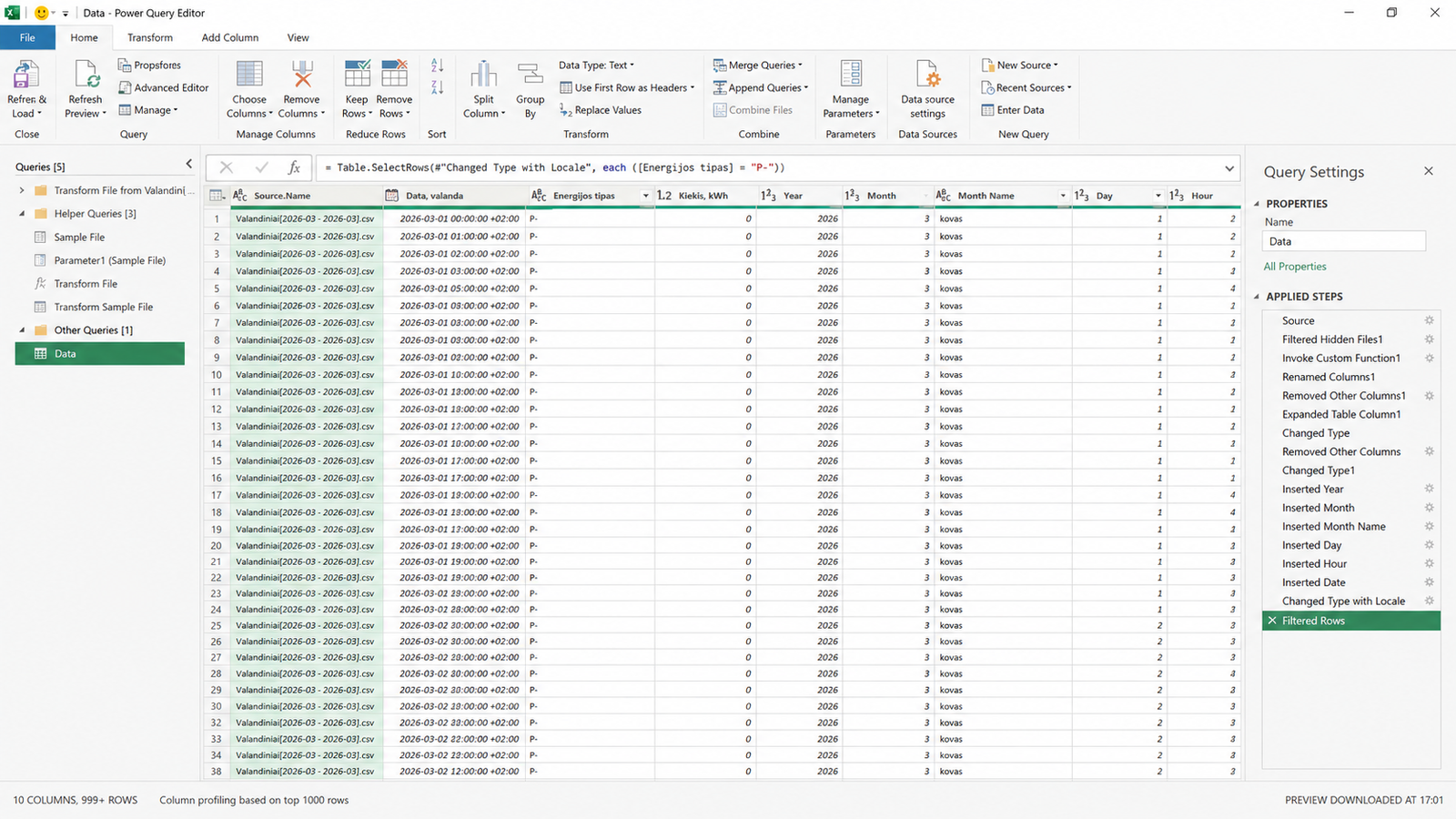
So the decision shouldn’t be based on which method looks more complex or modern, but on the actual data collection process.
Comparing Copy/Paste and Folder Import
| Scenario | Copy/Paste | Folder Import |
|---|---|---|
| A single periodic export | Usually a good fit | Often unnecessary |
| Many files with the same structure | A lot of manual work | The best choice |
| Only need the latest state | Very convenient | Can be overkill |
| Need to keep historical periods | Can extend the RAW table | Naturally accumulates files |
| Simple for beginners | Simpler | Need to understand folder logic |
| File names change | Doesn’t matter if data is copied | Doesn’t matter if not filtered by exact name |
| File structure sometimes changes | Easier to control | Higher risk of breaking |
| Fewest possible manual steps | Copy step remains | Usually better |
Common Mistakes When Choosing a Method
Choosing Folder just because it looks more advanced
If you only get one file a week and don’t need old data, the Folder method may just needlessly complicate the solution.
Using Copy/Paste for dozens of files
If you need to manually open and copy many identical files every month, that process eventually becomes inefficient. In this case, Folder Import usually provides more value.
No plan for duplicate control
When accumulating history in a RAW table or a folder, the same export can end up added more than once. If your data has a unique record number, it’s worth adding a duplicate removal or check step in Power Query.
The source structure keeps changing
Both methods can break if column names or their meaning change. So automation needs to be designed around a reasonably stable source, and significant changes need to be managed.
What Should You Choose?
Choose Copy/Paste – if you have one periodic export, only need to show the latest state, and value a simple, easily verifiable process above all.
Choose Folder Import – if you regularly receive many files with the same structure, want to automatically accumulate history, and reduce the number of manual steps.
If you’re not sure, start with the simpler method. You can always expand the solution once the actual process shows that Folder Import would provide clear value.
Good report automation doesn’t start with the most complex Power Query function – it starts with choosing the right data import strategy.
Frequently Asked Questions
Is Folder Import always the more professional solution?
No. A professional solution is one that reliably fits the specific process and that the client can easily use and maintain.
Can Copy/Paste be used to accumulate historical data?
Yes. New rows can be added to the bottom of the RAW table, but it’s recommended to have a unique record identifier and have Power Query remove duplicates.
Will Folder Import still work if files are renamed?
Yes, as long as the query reads all files of the right type in the folder and isn’t tied to one exact file name. The file structure still needs to stay consistent.
Can Folder Import be used for both Excel and CSV files?
Yes, but within a single merged process it’s recommended to use files of the same type and the same structure.
Conclusion
Copy/Paste and Folder Import aren’t competing methods where one is always better. They’re two different data delivery models suited to different situations.
Copy/Paste offers simplicity, control, and a clear process. Folder Import lets you automatically merge many files and conveniently accumulate historical data.
Before building Power Query queries, it’s worth assessing how the data arrives, who will use the solution, and how much history needs to be preserved. Once you’ve chosen the right import strategy, the rest of the automation becomes simpler and more reliable.
Not sure which method fits your report?
I can assess your current data collection and report preparation process and suggest the simplest, most reliable automation option.
Assess Automation OptionsPower Query cheat sheet: automate your report
The key steps, the 5 common mistakes, and when automating is worth it.
- PDF · 2 pages, practical
- No spam — value only