
Imagine a situation: every month you receive a new Excel file with sales data. The file structure is the same, only the period and the data rows change. Copying all the files into one table by hand quickly becomes tedious and risky.
In that case Power Query can automatically read all the files from the folder and combine them into one shared table. If you’re just starting with this tool, it’s worth first reading:what Power Query is and why it matters before analysis.
When to use the Folder connector
Use the Folder connector when you have many files with the same structure and want to combine them automatically.
- you have several Excel or CSV files;
- the files have the same columns;
- new files regularly appear in the same folder;
- you want to refresh the data by pressing Refresh.
This method is very convenient when working with monthly reports, sales exports, order lists or other recurring files.
Before combining files, it’s important that the data is prepared tidily. More on this:how to prepare a proper dataset for working in Power Query.
How to combine files from a folder
In the Power BI or Excel Power Query window, use this flow:
- selectGet Data;
- selectFrom Folder;
- specify the folder where the files are;
- clickCombine & Transform.
Power Query will read the files in the folder and let you choose how to combine them. Usually a sample file is chosen, and the transformation logic for all the other files is built based on it.
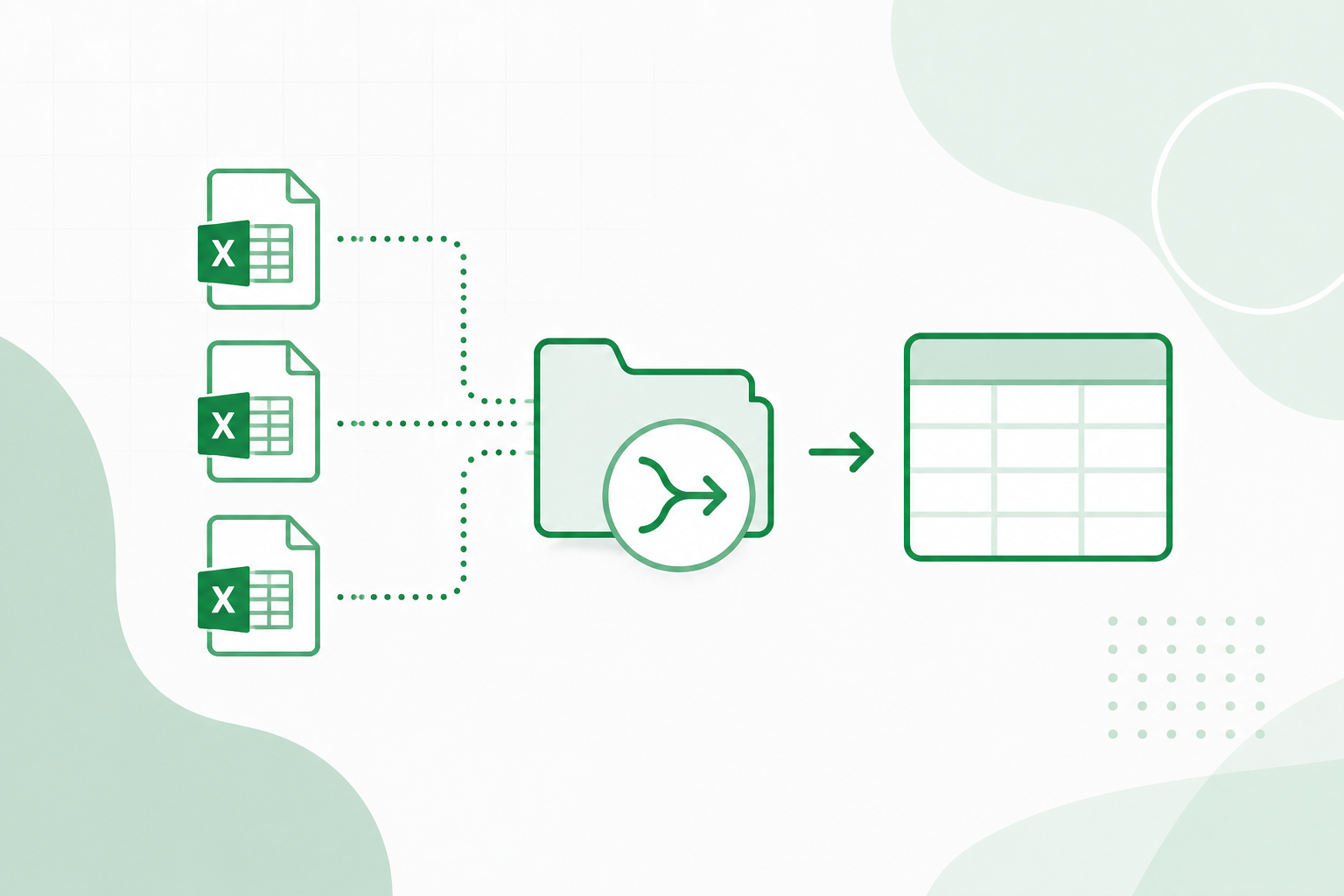
The most important rule: all the files in the folder must have a similar structure. If one file is missing a column or the column names differ, the result may be inaccurate or errors will appear.
What happens inside Power Query
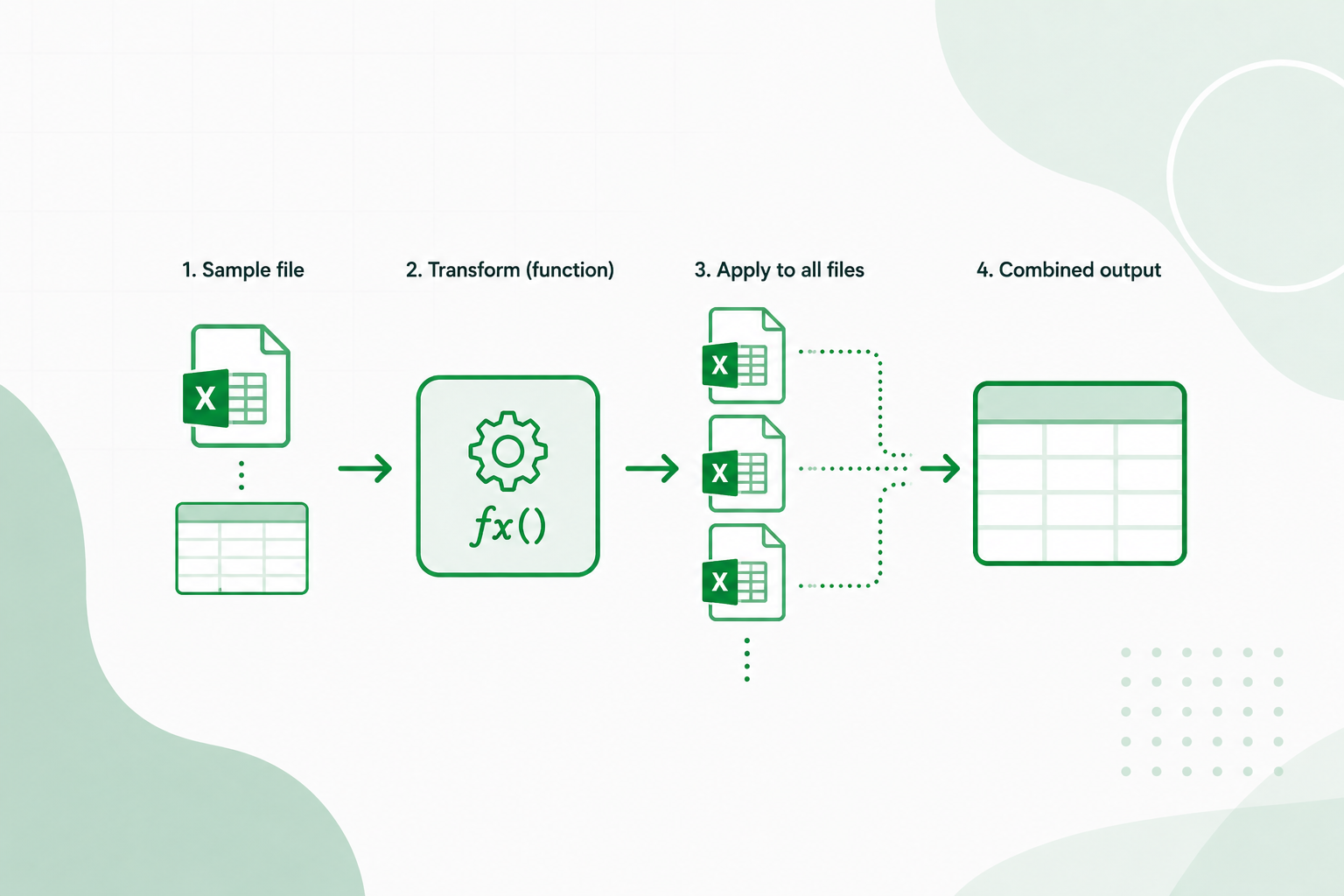
When you selectCombine & Transform, Power Query doesn’t just simply “glue” the files together. It creates several helper objects that let it apply the same transformation to each file.
The logic is usually as follows:
- one sample file is chosen;
- transformation actions are created based on it;
- the same actions are applied to all the files in the folder;
- the result is combined into a single table.
How automatic refresh works
Once the query is created, adding new files becomes very simple. You add a new file to the same folder and pressRefresh.
Power Query reads the folder again, finds the new file and applies the same transformation logic to it. If the file structure is the same, the new rows automatically appear in the shared table.
This is especially useful when reports are refreshed regularly: daily, weekly or monthly.
Common mistakes
The Folder connector works very conveniently, but only when the files are tidy enough. The most common problems:
- different column names;
- a different column order;
- different data types;
- empty or corrupted files in the folder;
- extra headers or comments in some files.
Very often errors arise due to incorrectly set data types. More on this:why it’s important to set data types correctly in Power Query.
When this method isn’t suitable
The Folder connector isn’t the best solution in every case. If the file structure differs a lot, you may have to handle them separately or use different combining logic.
For example, if you want to join different tables by a common ID, the Folder connector is not the same as Merge. In that case it’s worth understanding:how Merge and Append differ in Power Query.
The Folder connector works best when the files have the same structure and need to be stacked one after another into a shared table.
What to read next
- A proper dataset in Power Query
- Merge vs Append in Power Query
- Changed Type and Remove Columns pitfalls in Power Query
Conclusion
The Power Query Folder connector is one of the most convenient ways to automate combining recurring Excel or CSV files. Instead of copying data by hand, you can add a new file to the folder and refresh the query.
The main thing is to make sure all the files have the same structure. Then Power Query can automatically read the folder, apply the transformations and combine everything into a single analysis table.
Power Query cheat sheet: automate your report
The key steps, the 5 common mistakes, and when automating is worth it.
- PDF · 2 pages, practical
- No spam — value only