
Monthly reports are probably the biggest source of repetitive work in the office. At the start of every month, the same ritual: download the export, clean it up, combine it, refresh the calculations, redraw the charts. Twelve times a year.
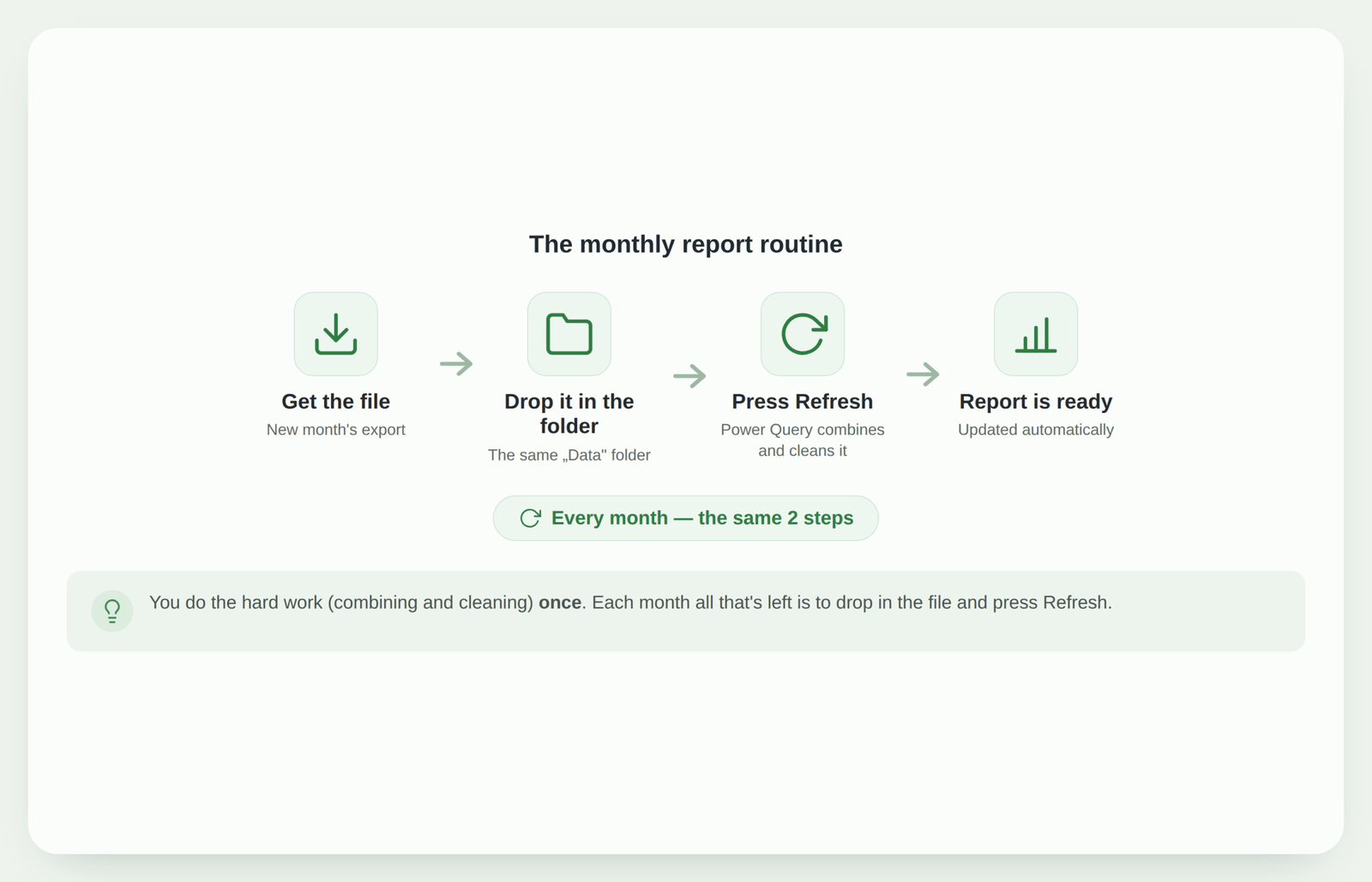
Precisely because they repeat, monthly reports are an ideal candidate for automation. The trick is simple: you do all the hard work once, and each month only two steps remain.
1. Why monthly reports are the best candidate for automation
If you do something once, automating it isn’t worth it. But if you repeat the same process every month, every hour you save is multiplied by twelve.
Monthly reports almost always have the same structure – the same columns, the same source, just new numbers. That’s exactly the kind of repetition Power Query is built to take over.
2. Separate the „one-time setup” from the „monthly action”
The essence of automation is splitting the work into two parts. One-time setup: you build a query that takes the data, cleans it, combines it and prepares it for the report. Monthly action: you drop in a new file and press Refresh.
Once you separate these two parts, the monthly report stops being a „project” and becomes a two-minute routine.
3. Folder import: connect to a folder, not a single file
The biggest speed-up for monthly work is connecting Power Query to a whole folder rather than a single file. Then a new month’s file just needs to be dropped into the same folder, and Refresh includes it automatically.
No more re-selecting the file, fixing the path or copying data each time – the folder becomes your „mailbox” where you simply drop the new file.
4. One Refresh updates the whole report
When data, calculations and charts are connected through the query, a single Refresh runs the whole chain: it picks up the new files, applies the same cleaning steps and updates the tables and charts.
What used to take half a day becomes a single button click – no copying, no errors, no stress.
5. When it fits (and when not yet)
This method works best when the file structure is stable – the same columns, the same format every month. If the source looks different each time, it’s worth agreeing on a consistent export format first.
Good examples: sales exports, accounting reports, production or warehouse data, time tracking – anything that arrives regularly and in a similar shape.
What to do next?
Start with the one monthly report you’ve been doing the longest. Build the query once, connect the folder – and next month you’ll see half a day’s work turn into two steps.
You’ll find the concrete steps here: how to automate an Excel report with Power Query. And if you’re torn between the folder and copy-paste methods, Folder Import or Copy/Paste will help you choose.
Conclusion
Monthly reports take the most time not because they’re complex, but because they repeat. By moving the hard work into a one-time setup and connecting a folder, you turn them into a two-step routine: drop in the file, press Refresh. One setup – twelve calmer months.
Have a monthly report you build by hand?
I can review it and build a process where each month all that’s left is to drop in the file and press Refresh – using Excel, Power Query or Power BI.
Assess automation optionsPower Query cheat sheet: automate your report
The key steps, the 5 common mistakes, and when automating is worth it.
- PDF · 2 pages, practical
- No spam — value only