When working with Power BI, it’s often not enough to simply sum a column. Most of the time we want to calculate by conditions: only one category, a specific period or a certain city.
In such situations you use theCALCULATEfunction. It lets you take an existing calculation and change its filter context.
If you’re just starting with DAX, it’s worth first reading:what DAX is and how measures differ from calculated columns.
What is CALCULATE?
CALCULATEis a DAX function that evaluates an expression in a changed filter context.
Simply put:you specify what to calculate and under what conditions.
CALCULATE syntax
CALCULATE(expression, filter1, filter2, ...)
expression– the calculation, e.g.SUM(Sales[Amount]).
filter– a condition that changes the filter context.
A simple example
We have a general sales measure:
All sales :=
SUM(Sales[Amount])
We want to calculate only bicycle sales:
Bicycle sales :=
CALCULATE(
    SUM(Sales[Amount]),
    Product[Category] = "Bicycles"
)
In this case Power BI calculates the sum of sales only for those rows where the product category is “Bicycles”.
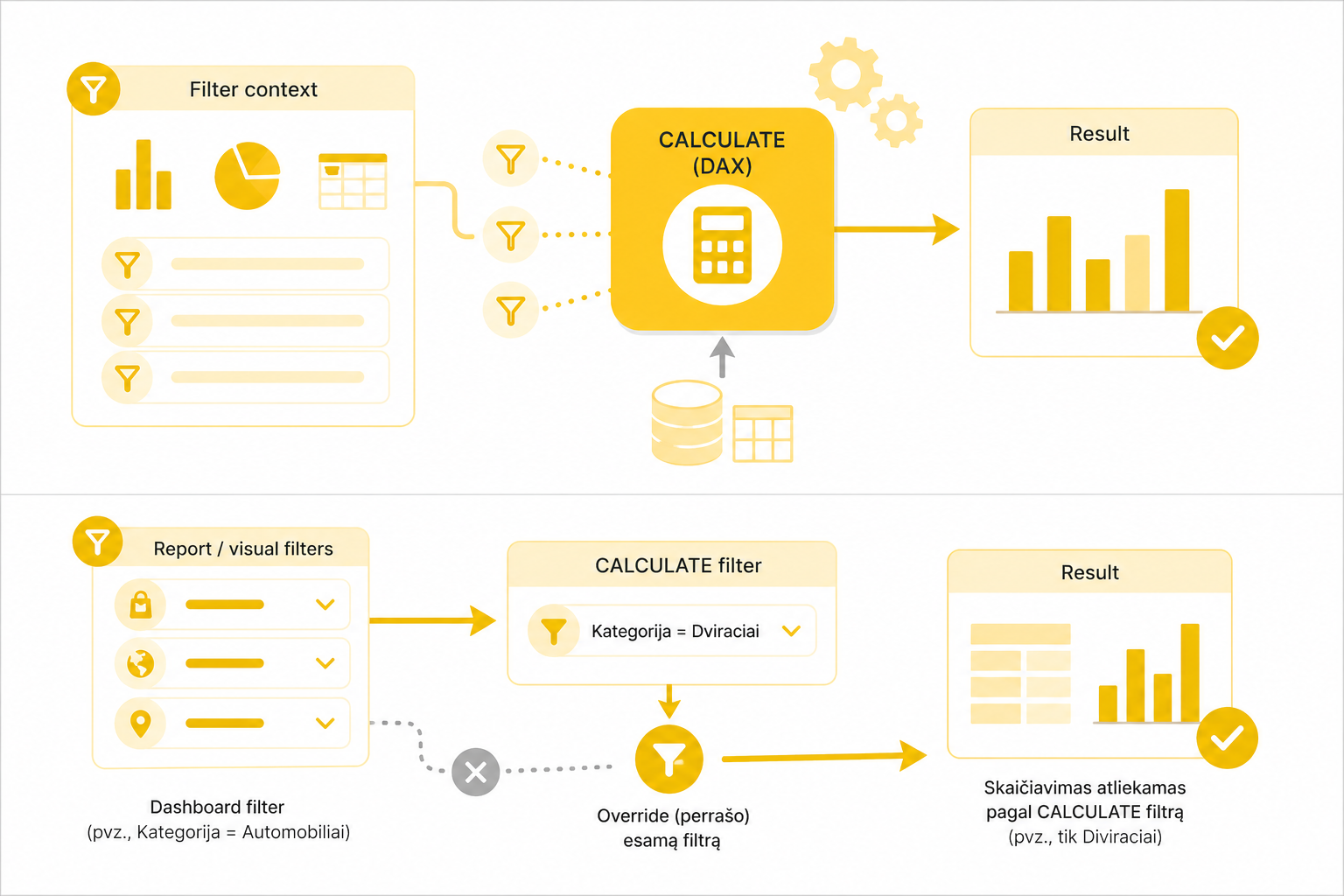
How CALCULATE changes the filter context
Filter context– these are the filters that affect the calculation: slicers, tables, charts, page filters and other report elements.
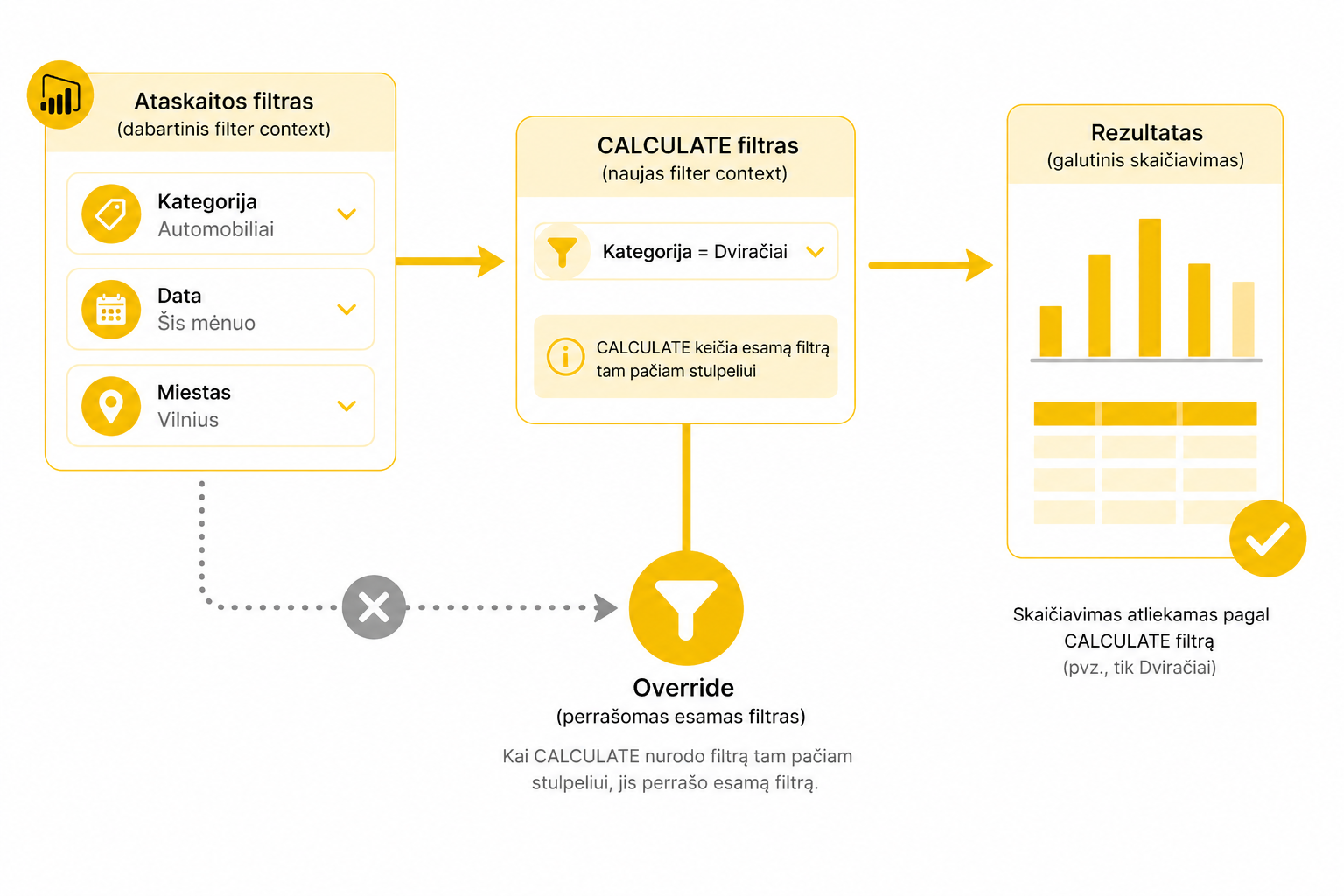
If a new filter for the same column is specified inside CALCULATE, it can overwrite the existing filter.
More on this:the difference between filter context and row context.
A REMOVEFILTERS example
CALCULATE is often used together with functions that change filter behavior. One of them isREMOVEFILTERS.
Sales all cities :=
CALCULATE(
    SUM(Sales[Amount]),
    REMOVEFILTERS(Stores[City])
)
In this case the city filter is ignored and the total sum for all cities is returned.
More on these functions:how ALL, REMOVEFILTERS and KEEPFILTERS work.
Common CALCULATE mistakes
- It’s assumed that CALCULATE changes the data, when it only changes the context.
- Row context and filter context are confused.
- Too much logic is put into a single measure.
- The data model relationships are ignored.
Working with Excel before moving to Power BI?
The easiest way to understand data logic is to start from merging Excel tables. For that we’ve prepared a short mini course on XLOOKUP.
🎓 View the mini courseWhat to read next
- How DAX sees data: Row vs Filter context
- ALL, REMOVEFILTERS and KEEPFILTERS
- Time Intelligence in Power BI
Conclusion
CALCULATE is the foundation of DAX. Once you understand how it changes the filter context, much broader Power BI analysis possibilities open up.
The most important thing to remember: CALCULATE doesn’t change the data in the table. It changes the conditions by which the calculation is performed.
Power Query cheat sheet: automate your report
The key steps, the 5 common mistakes, and when automating is worth it.
- PDF · 2 pages, practical
- No spam — value only