
Most Excel users use the XLOOKUP function to look for the first match. This works great for many situations.
But in real data there are often cases where the same ID repeats several times. In that case you may need not the first, but the last record.
For example:
- the customer’s last order
- the product’s latest price
- the last status
In such situations a standard XLOOKUP may return a result other than the one you expect.
1. Why XLOOKUP returns the first result
By default, XLOOKUP searches from the start of the table to the end.
If the same ID repeats several times, the function will return the first value found. This is not an error – that is how XLOOKUP works by its standard logic.
The problem arises when the last record is more important than the first.
If IDs repeat in your data, it is worth checking whether XLOOKUP returns exactly the result you need. Read more about this in the article:how to check whether XLOOKUP results are correct.
2. How to search from the end of the list
XLOOKUP has an additional parametersearch_mode.
Using the value-1, the search runs from the end of the list.
This formula:
- looks for the value in A2
- checks the ID column
- returns a value from the Status column
- starts the search from the end of the list
As a result, the last match found will be returned.
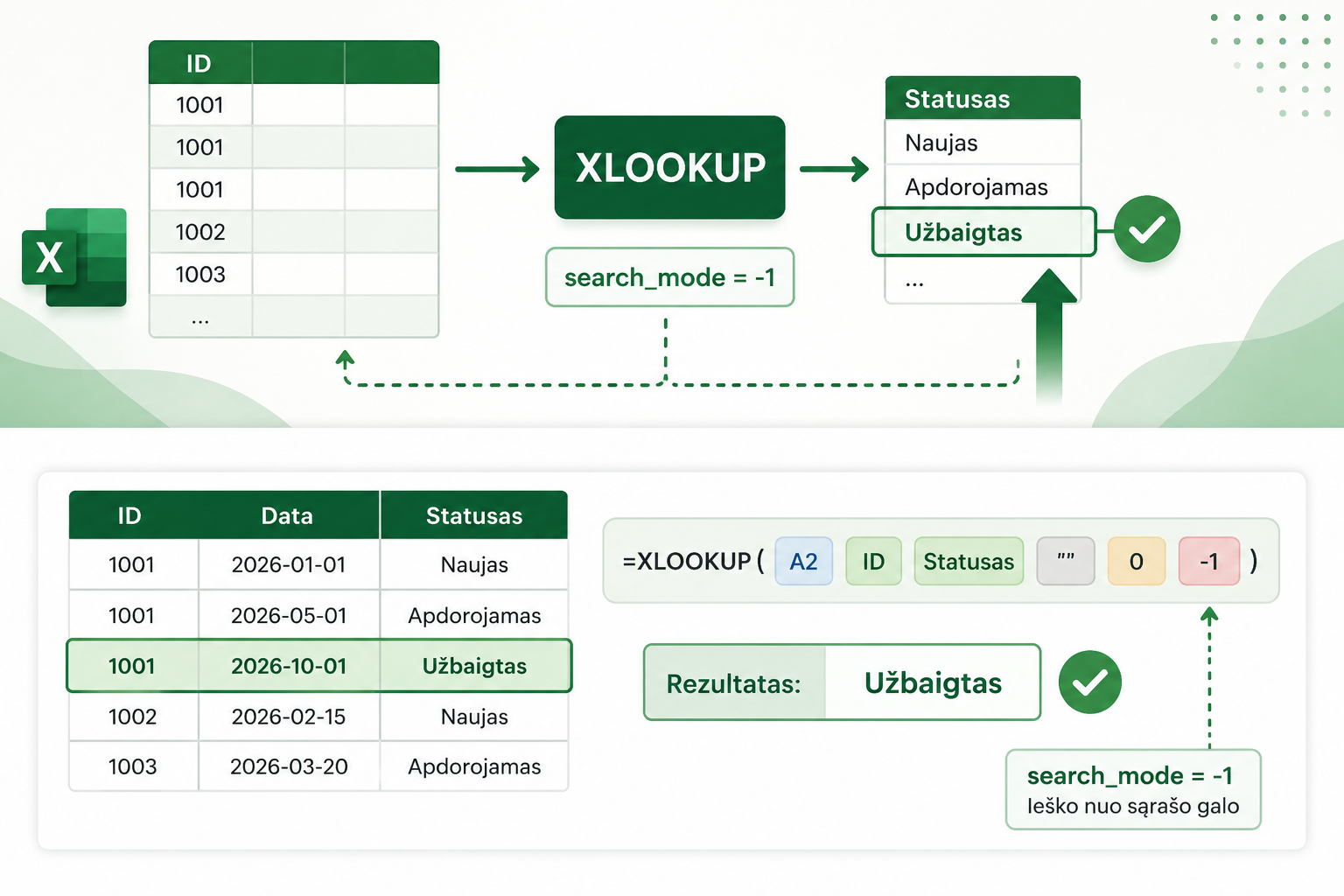
3. Practical example
Suppose a customer has several orders, and you need to get the latest status.
| ID | Date | Status |
|---|---|---|
| 1001 | 2026-01-01 | New |
| 1001 | 2026-05-01 | Processing |
| 1001 | 2026-10-01 | Completed |
A regular XLOOKUP would return the first value found:
But XLOOKUP withsearch_mode = -1will return the last match:
This is often exactly the result you need when working with repeating records.
4. When this is useful
Searching from the end of the list is useful when you need:
- the latest price
- the last order
- the customer’s last status
- the most recent record in the history
In such cases there is no need to sort the table or create additional complex formulas.
If a single criterion is not enough, you may need several conditions. Read more about this in the article:how to use XLOOKUP with multiple criteria in Excel tables.
5. Common mistakes
The most common problems are:
- the data is sorted in the wrong order
- the IDs have hidden spaces
- there are different data formats
- the last record is expected while using a standard XLOOKUP
If XLOOKUP does not find a value or returns an unexpected result, it is worth reading:XLOOKUP not working? 3 most common causes and how to fix them.
Why this matters
In much business data, the same customer, product or order repeats more than once.
The ability to find the last record lets you:
- see the most recent information
- reduce the need for additional formulas
- simplify the analysis
This is one of the most useful advanced XLOOKUP capabilities when you work with real, repeating data.
Mini course on merging Excel tables with XLOOKUP
We have prepared a short mini course that clearly shows:
- how to use XLOOKUP in real situations
- how to avoid the most common mistakes
- how to merge tables correctly
Want to learn how to merge Excel tables without errors?
In the mini course we show not only how to write XLOOKUP formulas, but also how to build a reliable table-merging process.
🎓 View the mini courseIf the button doesn’t work, open the course here:open the course
Power Query cheat sheet: automate your report
The key steps, the 5 common mistakes, and when automating is worth it.
- PDF · 2 pages, practical
- No spam — value only