
With the XLOOKUP function, merging Excel tables works quickly and reliably. But sometimes the results are wrong or a #N/A error value is returned, even though at first glance the data looks identical.
If you want to first see the merging logic itself, we recommend also reading this article:how to merge Excel tables by ID using XLOOKUP.
Most often the problem is caused not by the formula, but by incorrectly prepared ID columns. Let’s look at the three most common causes.
1. Spaces in ID values
One of the most common problems is invisible spaces in the ID column. Even a single extra space means Excel will treat the values as different.
Interestingly, spaces left to the right of an ID value are completely invisible to the human eye – you can only notice them by clicking on the value in the cell.
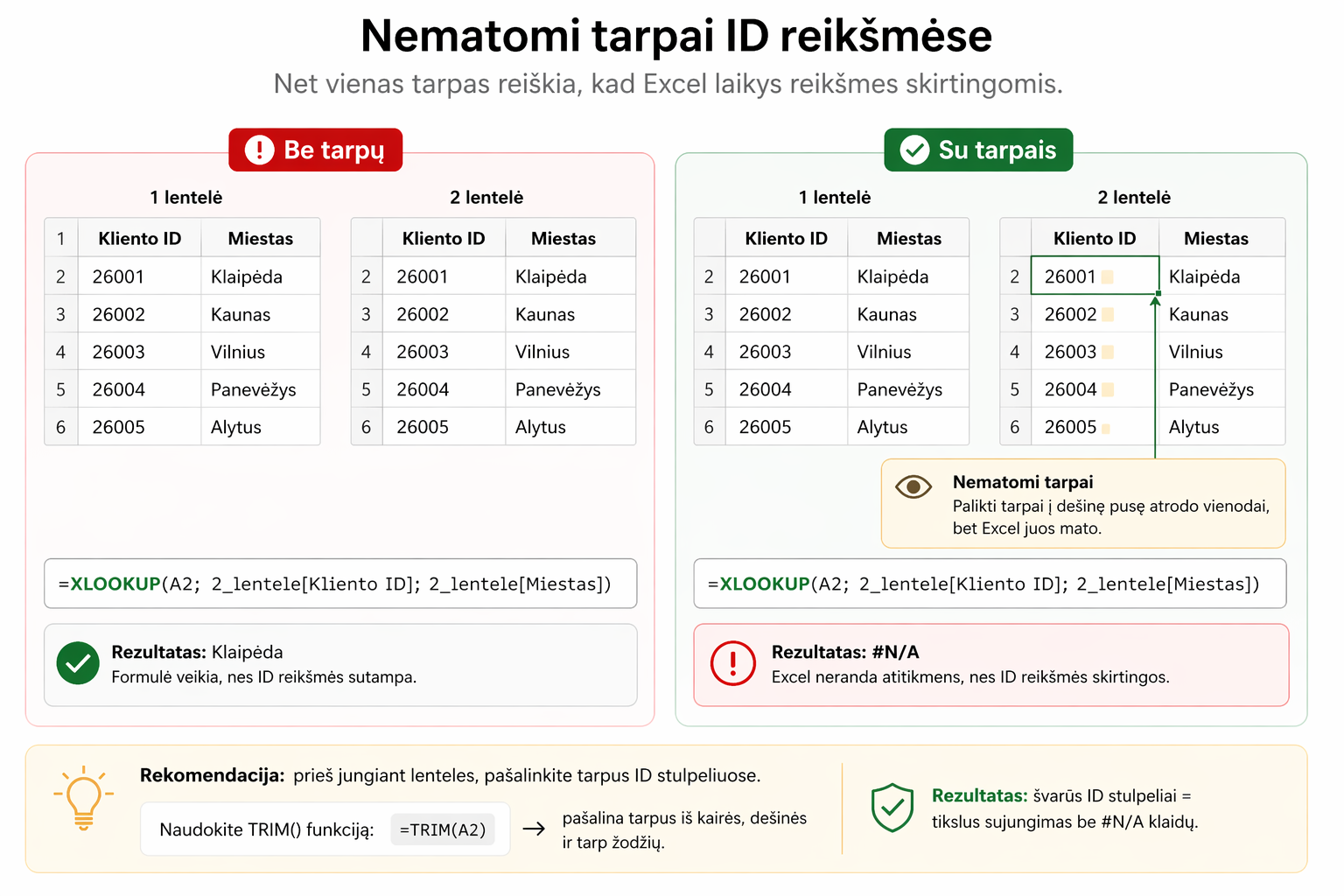
Although both values look the same to a person, Excel sees them as different. Because of that, XLOOKUP does not find a match and returns a #N/A error.
2. Different data formats (Text vs Number)
Another common problem is different data types. In one table the ID may be text, in another – a number.
In the tables they look visually identical, but Excel sees them as different values. In that case XLOOKUP does not find a match and returns #N/A.
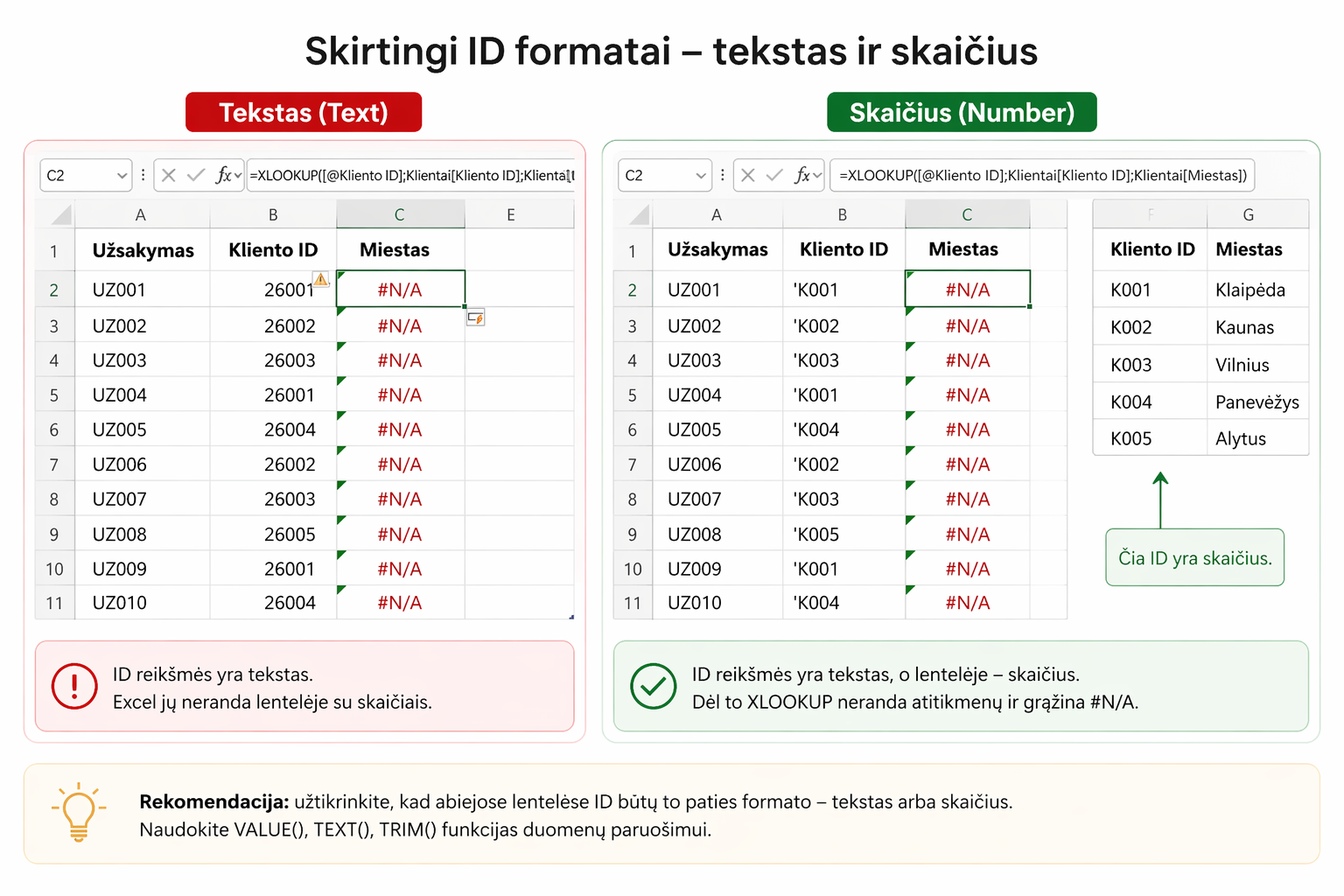
That is why, before merging tables, it is important to check that both tables use the same format for the ID column.
Want a simpler way to merge Excel tables?
In the mini course we show how to use XLOOKUP in practice and without unnecessary confusion.
🎓 View the mini courseIf the button doesn’t work, open the course here:open the course
3. Repeating IDs
XLOOKUP returns the first match it finds. If an ID repeats several times, a wrong result may be returned.
For example, if the same ID is recorded several times in a table, XLOOKUP will take the first value it finds. This means the result can be technically correct according to the formula’s logic, but wrong according to your expectation.
| ID | Amount |
|---|---|
| 1001 | 10 |
| 1001 | 25 |
XLOOKUP will return only the first value (10), even though a different one may be expected.
This is an especially common problem when working with:
- sales data
- order lists
- employee records
If the ID column is supposed to be unique, such duplicates can lead not only to a wrong result in a single row, but also to misleading conclusions across the whole table.
Why this matters
Although the XLOOKUP formula is simple, correctly merging tables depends on data quality. Even small errors in the ID column can lead to wrong results.
That is why, before merging tables, it is important to check:
- whether there are spaces
- whether the data formats are the same
- whether the ID does not repeat
In other words, XLOOKUP works well when the data itself is tidy. If the ID column is prepared incorrectly, even a good formula will not help you get a reliable result.
If you want to understand in more detail how XLOOKUP differs from older solutions, we recommend also reading these articles:XLOOKUP vs VLOOKUPandVLOOKUP not working?
Mini course on merging Excel tables with XLOOKUP
We have prepared a short mini course in which, in 10 minutes, you will learn:
- how to correctly merge Excel tables with XLOOKUP
- what conditions are required for a correct merge
- the most common mistakes and how to avoid them
- how to quickly check the ID columns
Want a simpler way to merge Excel tables?
In the mini course we show how to use XLOOKUP in practice and without unnecessary confusion.
🎓 View the mini courseIf the button doesn’t work, open the course here:open the course
Power Query cheat sheet: automate your report
The key steps, the 5 common mistakes, and when automating is worth it.
- PDF · 2 pages, practical
- No spam — value only