
VLOOKUP is one of the most commonly used Excel functions for merging tables. But when working with it, errors often appear that lead to incorrect data or formulas that do not work.
If you want to understand how this function differs from more modern solutions, we recommend reading:XLOOKUP vs VLOOKUP: how they differ and which function to use.
Most often the problem is not the function itself, but its limitations. Let’s look at the three most common situations.
Mistake 1 – the wrong column number
The number “3” specifies the column. If you insert a new column, the formula starts showing incorrect data.
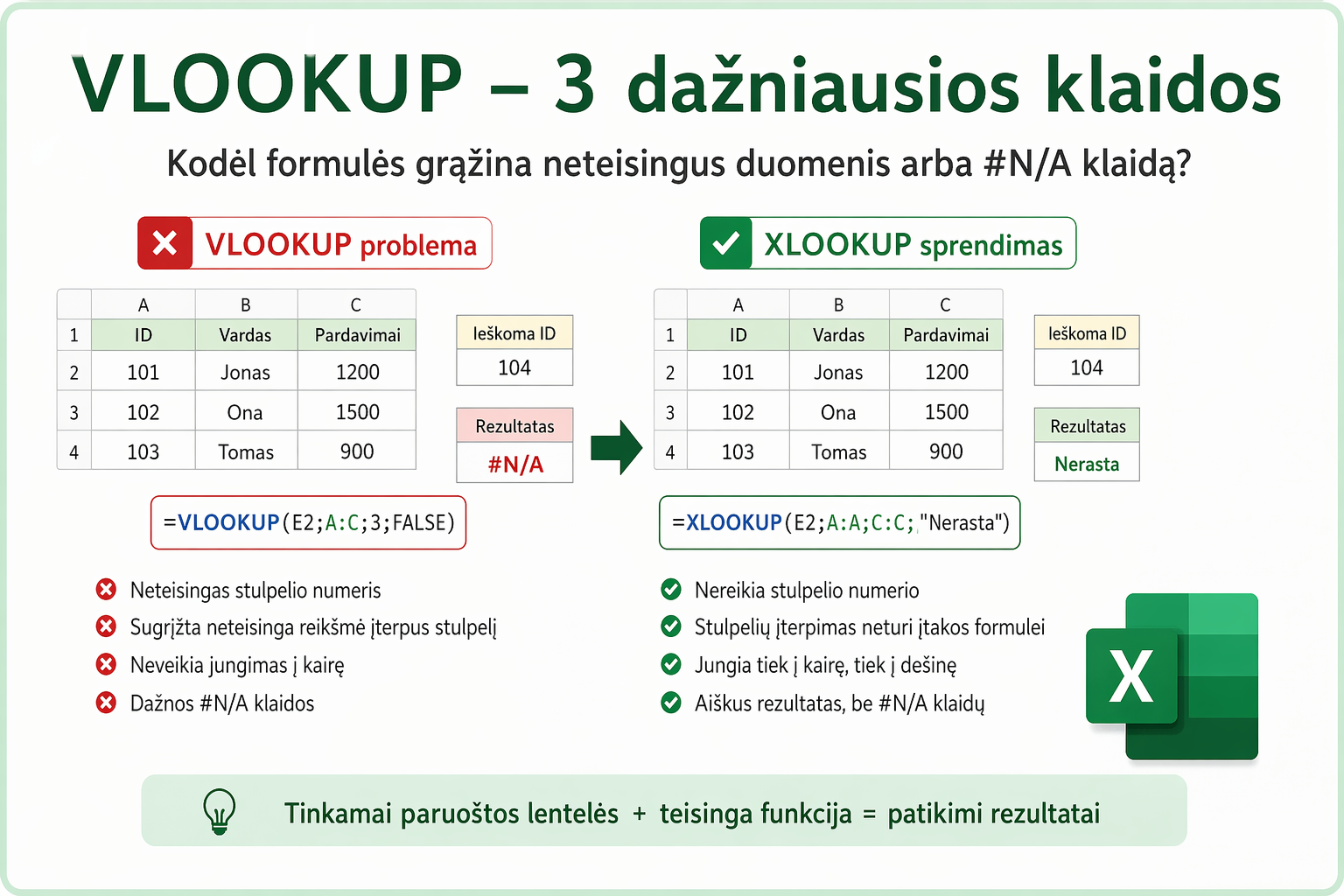
Mistake 2 – the formula breaks
VLOOKUP relies on the column number, so changes to the structure can spoil the result.
Mistake 3 – merging to the left doesn’t work
VLOOKUP cannot return values from the left side, so you have to change the table structure.
Want a simpler way to merge Excel tables?
In the mini course we show how to use XLOOKUP in practice and without unnecessary confusion.
🎓 View the mini courseIf the button doesn’t work, open the course here:open the course
If you want to understand the errors more deeply:XLOOKUP not working?orhow to merge tables.
Power Query cheat sheet: automate your report
The key steps, the 5 common mistakes, and when automating is worth it.
- PDF · 2 pages, practical
- No spam — value only