
When working with Excel, data is very often split across several files. One file may contain a list of customers, another – orders, purchases or prices.
In such situations you need to merge this data into a single table. Although at first glance this may seem complicated, XLOOKUP lets you do it quite simply.
If you are just learning the basic logic of merging tables, you can first read the article:how to merge Excel tables by ID using XLOOKUP.
1. When you need to merge different files
This situation is very common in practice. For example:
- customer data in one file, sales – in another
- a product list in one place, prices – in another
- data exported from different systems
In such cases you need to “merge” the tables so that one complements the other. For example, using the customer ID you can add the customer’s name, city or purchase amount to the orders table.
2. How XLOOKUP works with other files
XLOOKUP can look up values not only in the same file, but also in other Excel files.
The key thing to understand is that:
- the lookup array can be in another file
- the returned result can also come from another file
- the formula looks similar, only the references point to a different document
This means XLOOKUP can act as a bridge between two different Excel files.
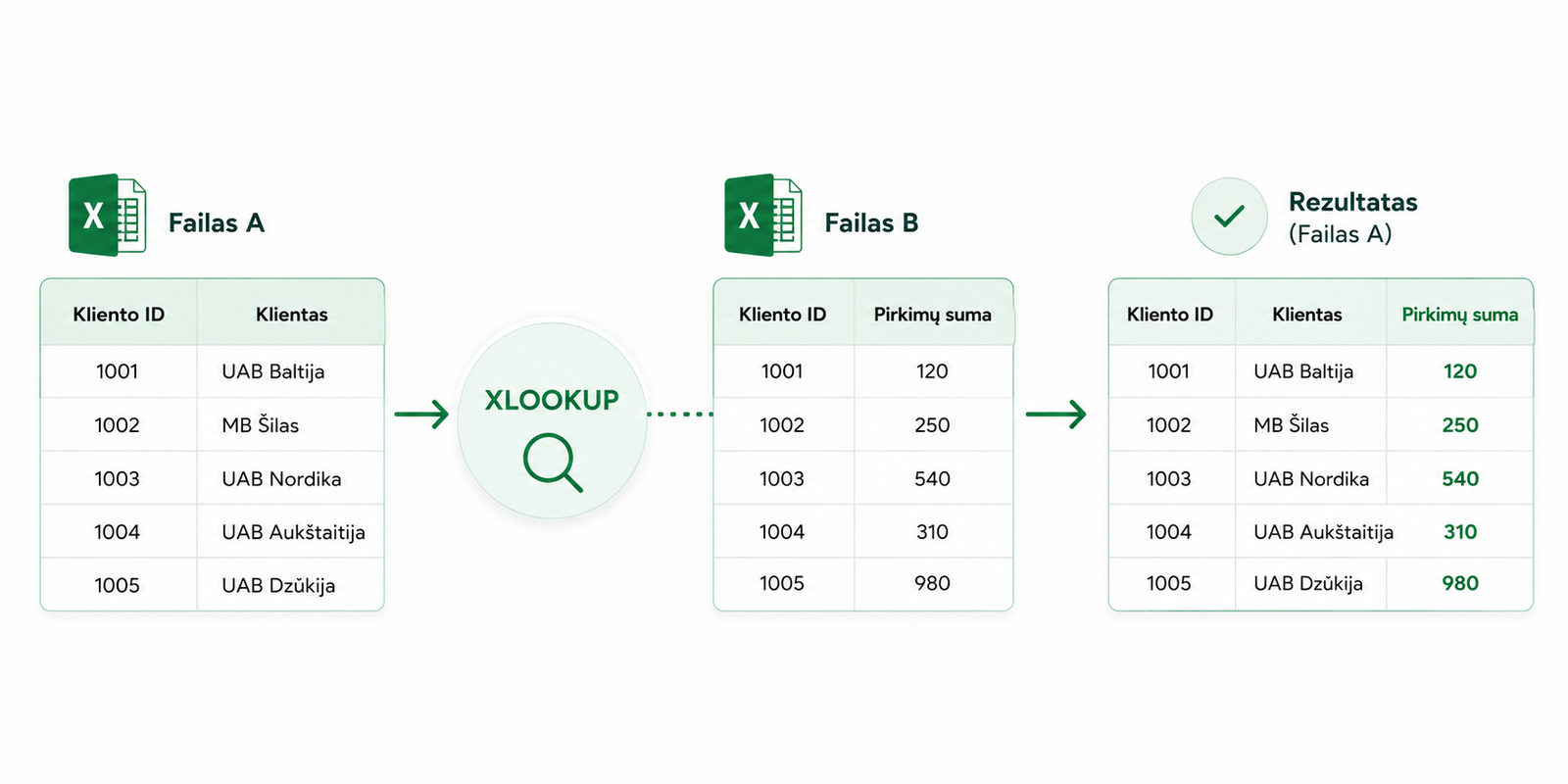
3. Example: merging two files
Suppose:
- File A– has customer IDs
- File B– has customer IDs and their purchase amounts
The goal is to add the purchase amount from File B into File A.
The formula might look like this:
This formula:
- looks for the ID from File A
- checks it in a column of File B
- returns the corresponding value from File B
4. An important point: open files
XLOOKUP works most reliably when both files are open.
If a file is closed:
- Excel may process the formula more slowly
- the references to the file can become longer and more complex
- errors can appear if the file is moved or renamed
That is why it is recommended to work with open files, especially when creating the formulas for the first time.
5. Common mistakes
When working with different files, the following mistakes are common:
- incorrect references to the file
- a changed file name or location
- different ID formats
- hidden spaces in the values
If XLOOKUP returns #N/A, the problem is often not in the formula itself. Very often the cause is data preparation or mismatched ID values.
Read more about this in the article:XLOOKUP not working? 3 most common causes and how to fix them.
Why this matters
The ability to merge data from different files is one of the most important practical Excel skills.
It lets you:
- work with real data from different sources
- avoid manual copying
- prepare data for analysis faster
- reduce the risk of errors
Before you trust the results, it is worth double-checking them. We write more about this in the article:how to check whether XLOOKUP results are correct.
The more you work with Excel, the more often you will run into the situation where data is kept not in one, but in several different files.
Mini course on merging Excel tables with XLOOKUP
We have prepared a short mini course that clearly shows:
- how to merge tables with XLOOKUP
- how to work with different data sources
- what conditions are required for a correct result
- how to avoid the most common mistakes
Want to learn to merge Excel tables in 10 minutes?
In the mini course we show how to use XLOOKUP in practice and without unnecessary confusion.
🎓 View the mini courseIf the button doesn’t work, open the course here:open the course
Power Query cheat sheet: automate your report
The key steps, the 5 common mistakes, and when automating is worth it.
- PDF · 2 pages, practical
- No spam — value only