
One of the most important and most commonly used Excel tasks is merging two or more tables by a common ID column. VLOOKUP is often used for this, but it has quite a few limitations and frequently causes errors.
If you first want to see how such a merge is done in general, we recommend also reading this article:how to merge Excel tables by ID using XLOOKUP.
Since 2021, along with an updated version of Excel, a more modern alternative appeared – XLOOKUP. It lets you avoid many of VLOOKUP’s limitations and usually becomes a simpler, more flexible and more reliable way to merge Excel tables.
VLOOKUP’s drawbacks
When using VLOOKUP, you often run into these problems:
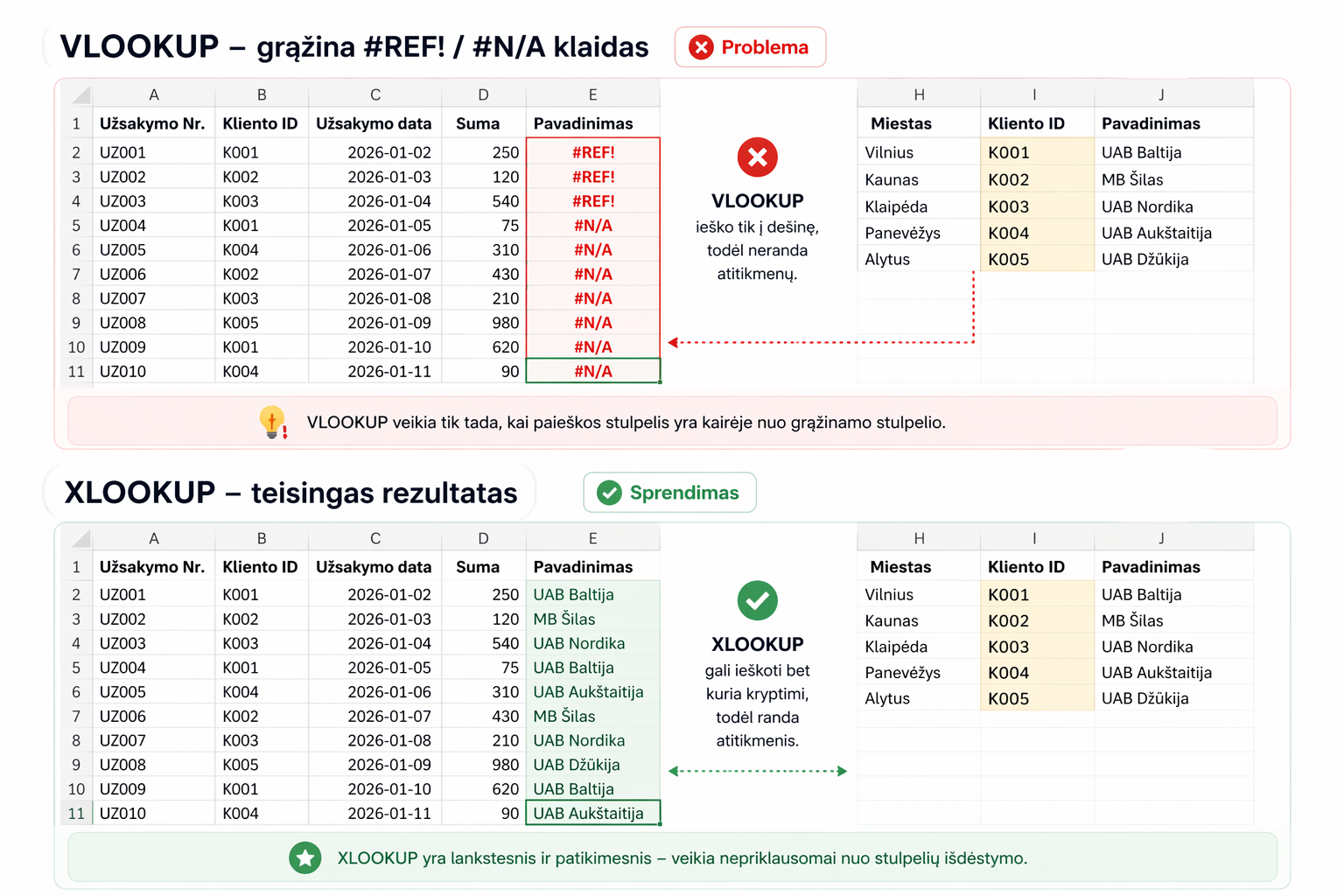
- merging to the left side of the table doesn’t work
- the function breaks when you insert a new column
- you have to count the column number
- the formula is harder to read and maintain
- frequent #N/A errors
- it’s easy to break the ranges when copying the formula
A typical VLOOKUP example:
The problem is that the number “3” specifies the column index. If you insert a new column into the table, the formula may start returning incorrect data.
Is VLOOKUP still getting on your nerves?
We’ve prepared a short mini course that clearly shows how to merge Excel tables with XLOOKUP quickly, stably and without unnecessary confusion.
▶ Learn to merge Excel tables in 10 minutesIf the button doesn’t work, open the course here:open the course
XLOOKUP’s advantages
XLOOKUP works more simply and clearly:
This formula simply looks for a value in one column and returns the result from another. No column indexes, no extra counting, and no unnecessary limitations.
The main advantages of XLOOKUP:
- simpler and more readable syntax
- no need to count column numbers
- merging works both to the left and to the right of the ID column
- fewer errors
- more reliable table merging
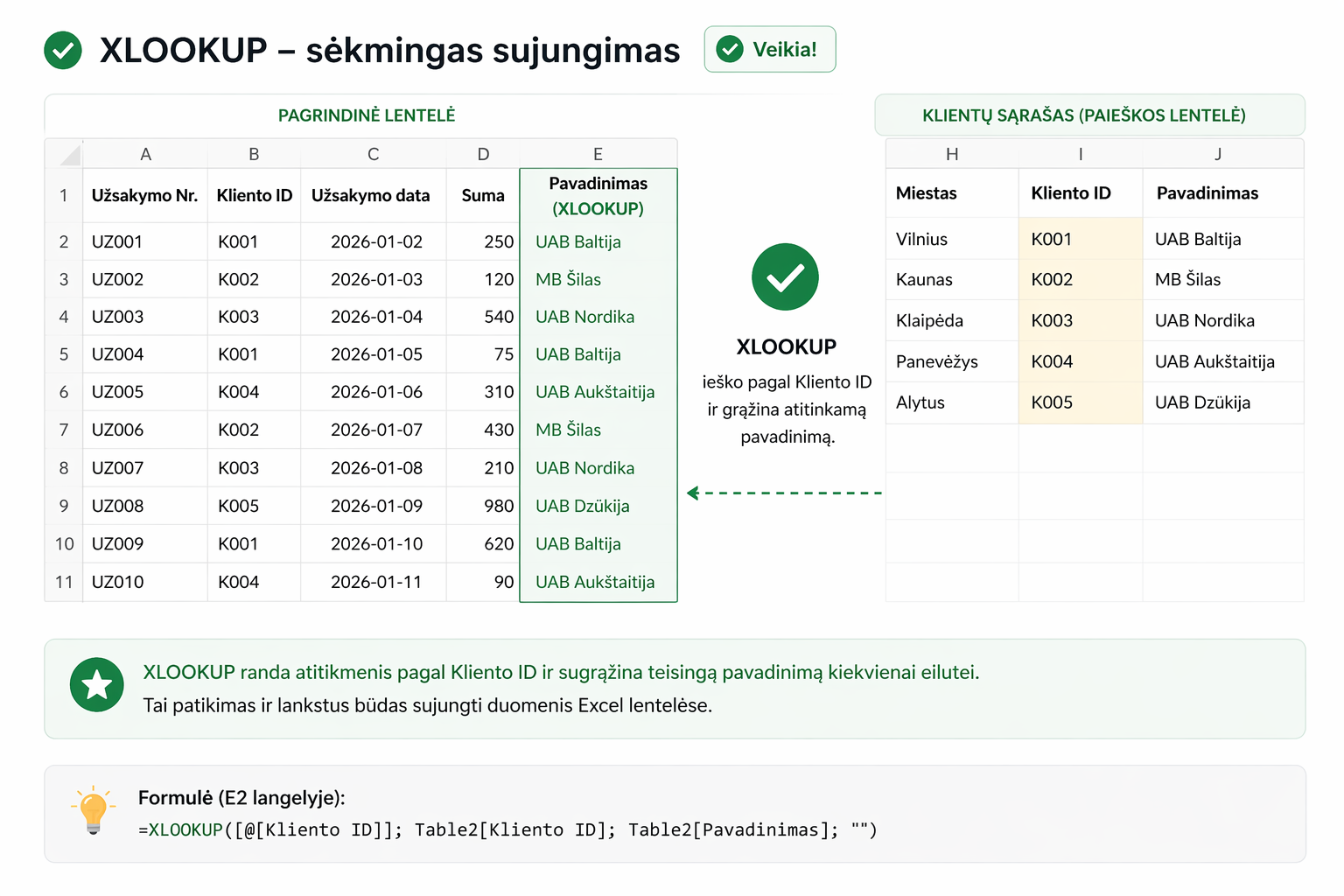
In other words, XLOOKUP lets you merge Excel tables without indexes, without calculations and without unstable formulas.
When is it worth switching to XLOOKUP?
XLOOKUP is especially useful when:
- you merge two tables by ID
- the data changes frequently
- the tables are large
- you need a reliable solution
In such situations XLOOKUP lets you merge tables faster and more stably. If you’re still unsure, you can also compare this article:XLOOKUP vs VLOOKUP: how they differ and which function to use.
Common mistakes when merging tables
Correct table merging depends on several important conditions: unique IDs, consistent data formats, correctly prepared tables and error control. This helps you avoid incorrect matches and ensure a reliable result.
Although XLOOKUP is simpler, incorrectly merging tables can still lead to:
- incorrect matches
- missing data
- #N/A errors
- duplicated values
If you want to understand these problems more deeply, also read these articles:
- XLOOKUP not working? 3 most common causes and how to fix them
- VLOOKUP not working? 3 most common mistakes and how to fix them
That is why it is important to know not only the formula, but also the correct preparation of the tables.
Mini course on merging Excel tables with XLOOKUP
We’ve prepared a short mini course in which, in 10 minutes, you will learn:
- how to correctly merge Excel tables with XLOOKUP
- what conditions are required for a correct merge
- what the most common mistakes are and how to avoid them
- how to work with table merging in Excel faster and more calmly
Want to merge Excel tables without stress?
This mini course is for those who want to quickly master XLOOKUP and no longer get stuck on merging tables or asking colleagues for help.
📘 View the XLOOKUP mini courseIf the button doesn’t work, open the course here:open the course
Frequently asked questions
In most cases yes, because XLOOKUP is simpler, more flexible and less likely to break when the table structure changes.
If you work with an older version of Excel that doesn’t have XLOOKUP, VLOOKUP can still be a suitable solution.
The most common reasons are different data formats, extra spaces, repeating IDs, or incorrectly prepared tables.
Power Query cheat sheet: automate your report
The key steps, the 5 common mistakes, and when automating is worth it.
- PDF · 2 pages, practical
- No spam — value only