
For many years VLOOKUP was the main Excel function for merging tables. But with the arrival of XLOOKUP, the situation changed.
Although VLOOKUP is still used, XLOOKUP offers a simpler and more flexible way to perform a lookup. Because of that, in most cases it becomes the better choice.
If you want to see how XLOOKUP is applied in practice when merging tables, we recommend also reading this article:how to merge Excel tables by ID using XLOOKUP.
1. How VLOOKUP works
VLOOKUP looks for a value in the first column of the table and returns a result from another column.
This formula:
- looks for the value in A2
- checks it in the first column
- returns a value from the second column
VLOOKUP was the standard solution for a long time, but it has limitations that become apparent when working with more realistic data.
2. How XLOOKUP works
XLOOKUP lets you clearly specify where to look and what to return.
This formula:
- looks for the value in A2
- checks it in the specified column
- returns a result from another column
Thanks to its clearer structure, XLOOKUP formulas are usually easier to understand, maintain and fix.
3. The main differences
Both functions are designed for lookups, but in real work the differences between them become very important.
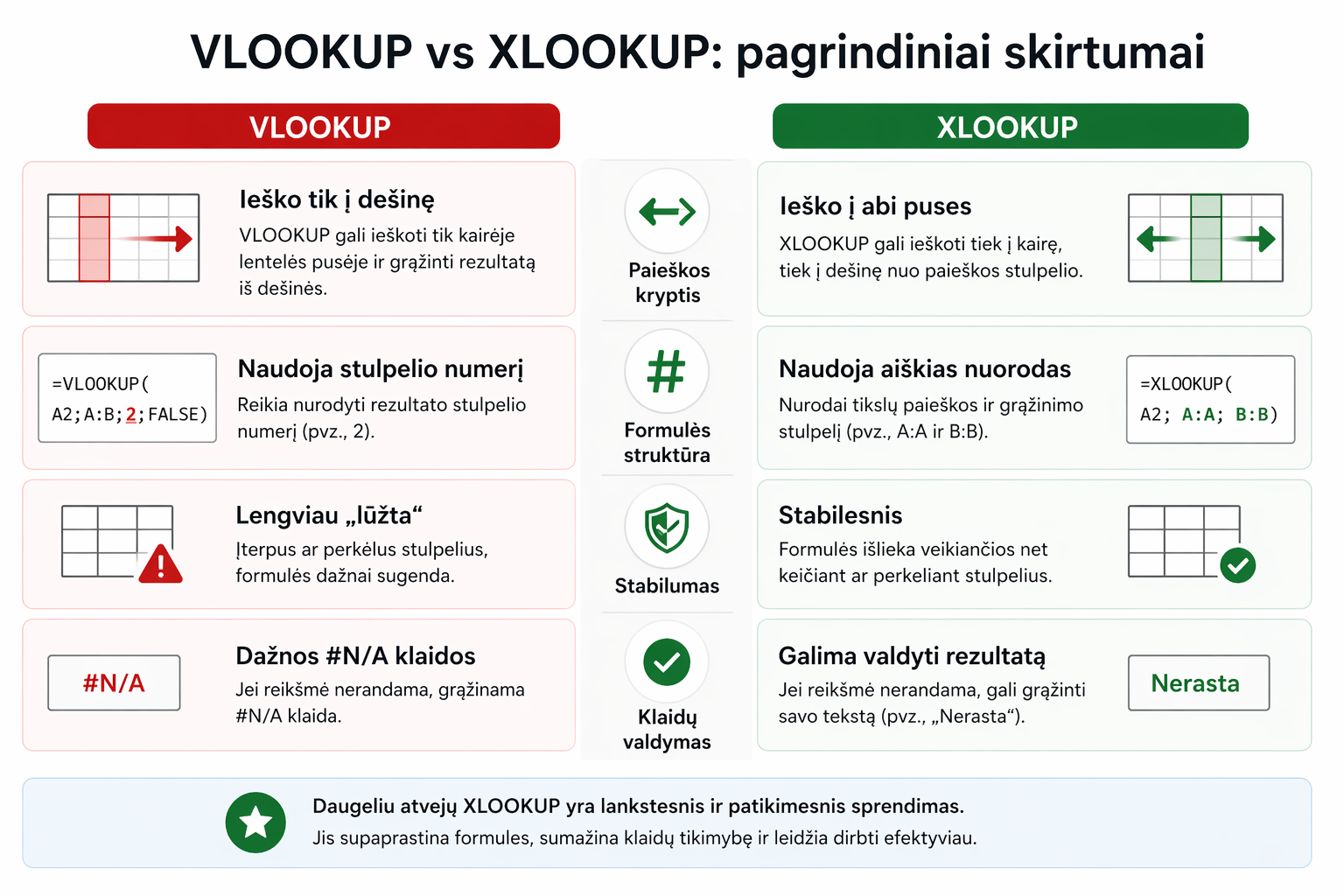
VLOOKUP
- looks only from left to right
- uses a column number
- “breaks” more easily when the table changes
- less flexible in more complex situations
XLOOKUP
- can search in any direction
- uses clear references to columns
- is more stable when tables change
- more convenient when working with more realistic data
1. Search direction
- VLOOKUP searches only from left to right
- XLOOKUP can search in any direction
2. Formula clarity
- VLOOKUP uses a column number
- XLOOKUP uses clear references
As a result, XLOOKUP formulas are easier to understand and less prone to errors.
3. Error handling
- VLOOKUP often returns #N/A
- XLOOKUP lets you specify what to show instead of an error
4. Working with data
- VLOOKUP “breaks” more easily when the table changes
- XLOOKUP is a more stable and flexible solution
4. When to use which function
VLOOKUP can be used if:
- you work with an older version of Excel
- you have a very simple table
XLOOKUP is the better choice if:
- you want a more flexible solution
- you work with more complex data
- you want to avoid frequent errors
5. Common mistakes
No matter which function you use, the most common problems remain the same:
- messy ID columns
- different data formats
- hidden spaces
👉 Read more about this in the articleXLOOKUP not working? 3 most common causes.
Why this matters
By choosing the right function, you can:
- work faster
- reduce the number of errors
- maintain formulas more easily
Over time, this lets you work with Excel more efficiently and avoid recurring problems.
Mini course on merging Excel tables with XLOOKUP
We have prepared a short mini course that clearly shows:
- how to use XLOOKUP in real situations
- how to merge tables correctly
- how to avoid the most common mistakes
- how to work with more complex data
Want a simpler way to merge Excel tables?
In the mini course we show how to use XLOOKUP in practice and without unnecessary confusion.
🎓 View the mini courseIf the button doesn’t work, open the course here:open the course
Power Query cheat sheet: automate your report
The key steps, the 5 common mistakes, and when automating is worth it.
- PDF · 2 pages, practical
- No spam — value only