
When working with Excel, you often need to merge two tables by a common ID column. For example, one table has a list of employees, and another – their salaries. The goal is to add the salary to each employee.
VLOOKUP is most often used for this, but it has quite a few limitations and often causes errors. Because of that, a simpler and more reliable solution is increasingly chosen – XLOOKUP.
If you want to compare these functions in more detail, we recommend also reading this article:XLOOKUP vs VLOOKUP: how they differ and which function to use.
Let’s look at the general logic.
We have two tables
The first table:
The second table:
The goal is to add a salary column to the first table by ID.
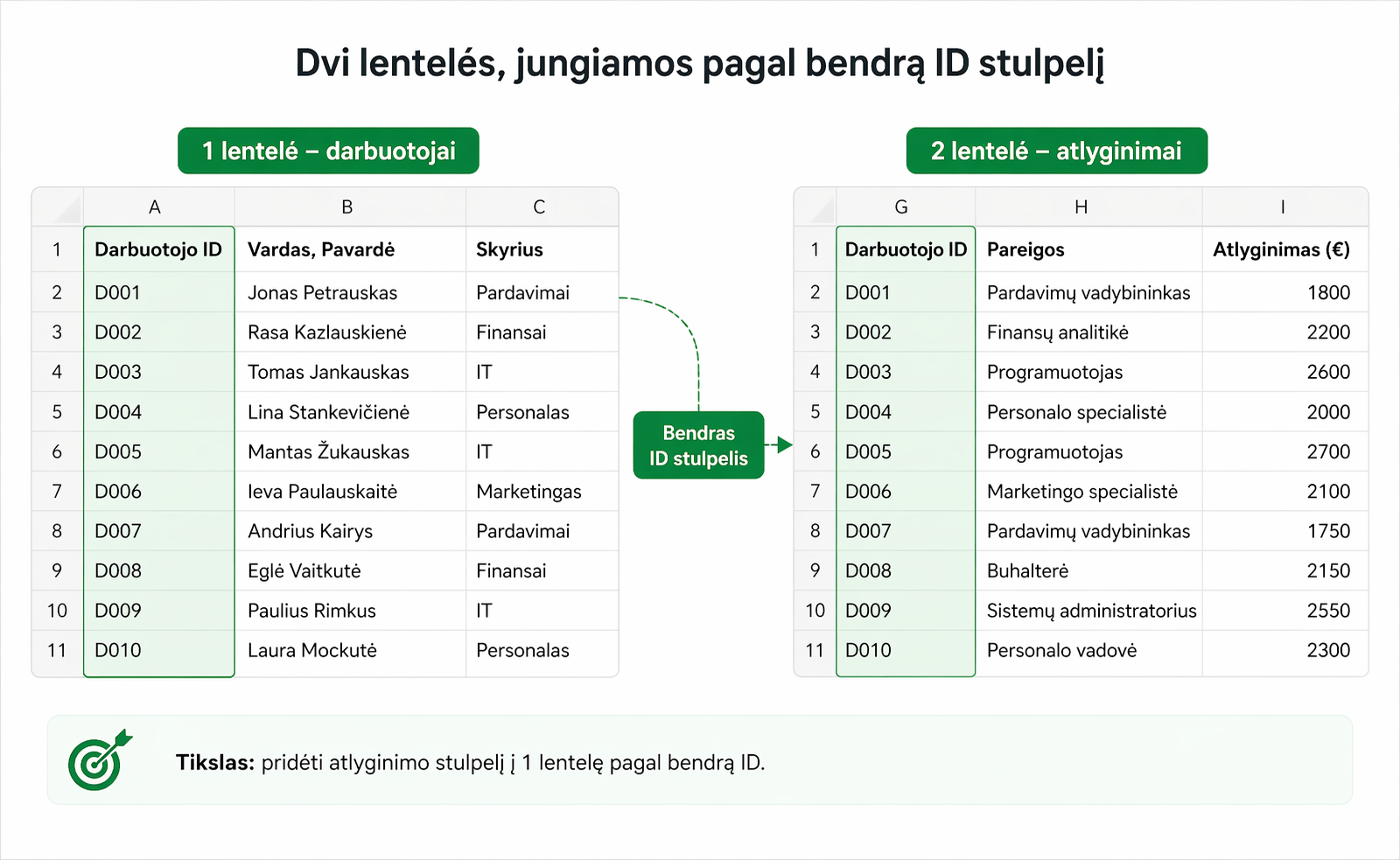
The table-merging logic
Merging tables happens in three steps:
- a common ID column is chosen
- the matching value is found in the other table
- the desired column is returned
The XLOOKUP function makes this logic simple to implement.
Example:
The formula:
- looks for the ID
- finds the match
- returns the result
Unlike VLOOKUP, you do not need to:
- count column numbers
- sort the tables
- worry about inserting columns
When XLOOKUP is especially useful
XLOOKUP is convenient to use when:
- you merge two tables by ID
- the data is updated frequently
- the tables are large
- you need a reliable result
- VLOOKUP often returns errors
In such situations XLOOKUP lets you merge tables quickly and stably.
Common problems when merging tables
Even when using XLOOKUP, problems can arise:
- different ID formats
- spaces in the data
- non-unique IDs
- missing values
- #N/A errors
That is why not only the formula matters, but also the correct preparation of the tables.
If you want to understand more deeply why tables do not merge, we recommend also reading these articles:XLOOKUP not working?andVLOOKUP not working?
Want a simpler way to merge Excel tables?
In the mini course we show how to use XLOOKUP in practice and without unnecessary confusion.
🎓 View the mini courseIf the button doesn’t work, open the course here:open the course
Power Query cheat sheet: automate your report
The key steps, the 5 common mistakes, and when automating is worth it.
- PDF · 2 pages, practical
- No spam — value only