
When working with XLOOKUP, a lot of attention is paid to making the formula “work”. But in real work it is even more important to make sure the results are correct.
Even without #N/A errors, there can be situations where XLOOKUP returns a wrong value. This usually happens due to the data structure or a poorly chosen lookup logic.
If you are just learning the basic principle of merging tables, you can first read the article:how to merge Excel tables by ID using XLOOKUP.
1. Why XLOOKUP can return the wrong result
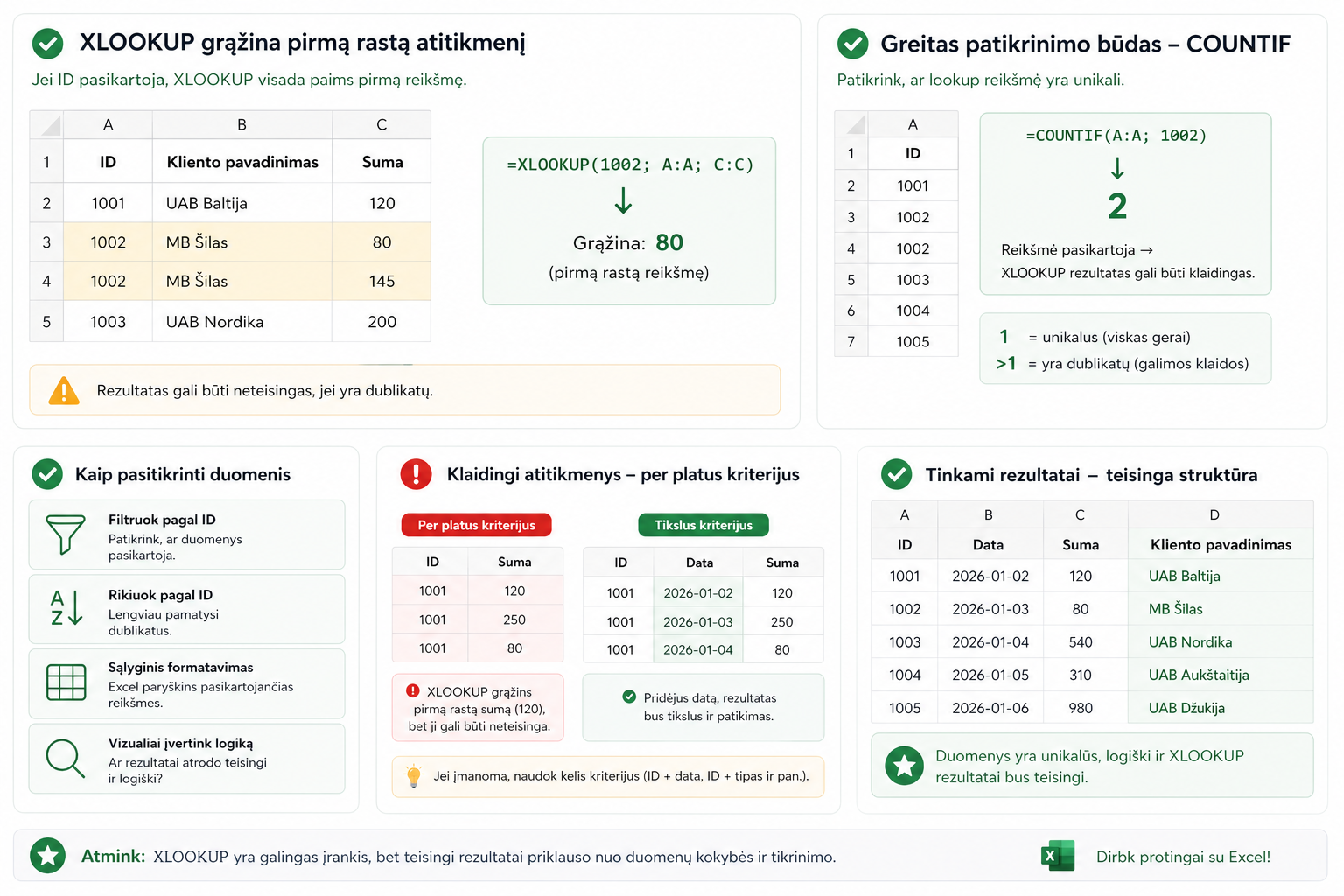
XLOOKUP returns the first match it finds. If there are duplicates in the data or the search criterion is not precise enough, the result can be wrong.
For example, a problem can arise when:
- the same ID is used several times
- there are several possible matches in the table
- the lookup criterion is too broad
In such cases the formula works “correctly” according to Excel’s logic, but the result does not match your expectations.
2. A quick way to check
One of the simplest ways is to check whether the lookup value is unique. You can use the COUNTIF function for this.
If the result is:
- 1→ everything is fine, the ID was found once
- >1→ there are duplicates and XLOOKUP may return the wrong value
| ID | Amount |
|---|---|
| 1001 | 120 |
| 1002 | 80 |
| 1002 | 145 |
This check quickly shows whether problems with the XLOOKUP results are possible.
3. Duplicates and incorrect matches
If an ID repeats, XLOOKUP will always take the first value found.
This can cause:
- incorrect amounts
- wrong assignments
- inaccurate reports
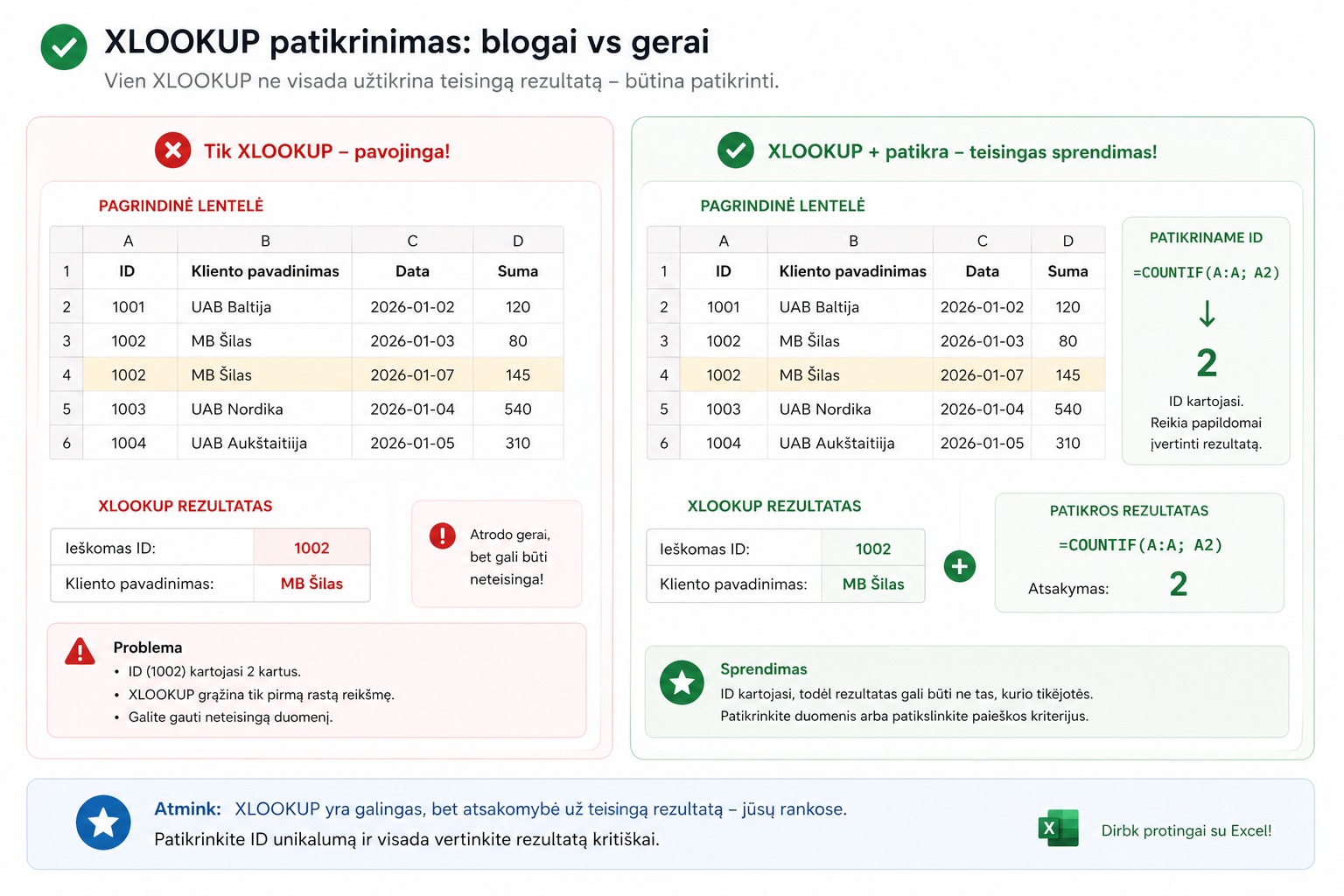
In such situations it is worth assessing whether a single criterion is enough. Sometimes you need to use an additional criterion, for example a date, a category or a customer code.
If XLOOKUP returns an error or does not find a value, the problem may also be related to data quality. Read more about this in the article:XLOOKUP not working? 3 most common causes and how to fix them.
4. How to verify your data
Besides COUNTIF, you can use other simple ways to check.
- filter by ID and see whether there are duplicates
- sort the data by ID and visually check for duplicates
- use conditional formatting so that Excel highlights duplicates
The most important thing is not to rely on the formula alone. XLOOKUP can return a result, but you still have to make sure it is logical and matches the real situation.
5. Common mistakes when checking XLOOKUP results
When checking results, people most often forget to:
- check whether the IDs are unique
- assess whether multiple criteria are needed
- review the data quality before writing the formula
It is also important to understand how XLOOKUP differs from older lookup functions. If you want a comparison, read:XLOOKUP vs VLOOKUP: how they differ and which function to use.
Why this matters
Even a single error in a table can have a big impact on the results.
Using XLOOKUP correctly means not only writing the formula, but also checking the results.
This is especially important when working with:
- financial data
- sales reports
- business decisions
In other words, XLOOKUP is a convenient tool, but the final result depends on how well you understand the data you are working with.
Mini course on merging Excel tables with XLOOKUP
We have prepared a short mini course that clearly shows:
- how to merge tables with XLOOKUP
- how to avoid wrong results
- how to check the ID columns
- how to work with real situations
Want to learn how to merge Excel tables without errors?
In the mini course we show not only how to write XLOOKUP formulas, but also how to make sure the results are correct.
🎓 View the mini courseIf the button doesn’t work, open the course here:open the course
Power Query cheat sheet: automate your report
The key steps, the 5 common mistakes, and when automating is worth it.
- PDF · 2 pages, practical
- No spam — value only