
With XLOOKUP, merging tables in Excel becomes simple. But often the same action is repeated over and over.
- you load new data
- you copy the formulas
- you check that everything works
Over time this takes a lot of time and increases the chance of errors. That is why it is worth thinking not only about the formula, but about the process itself.
If you are just learning the basic logic of merging tables, you can first read the article:how to merge Excel tables by ID using XLOOKUP.
1. Why manual merging is inefficient
Manual work often looks simple, but it has drawbacks.
- you have to repeat the same steps
- it is easy to make mistakes
- it is hard to ensure consistency
Even if the XLOOKUP formula is correct, the process itself can be inefficient. The more often you need to update the data, the more it is worth thinking about a repeatable solution.
2. What an automated process looks like
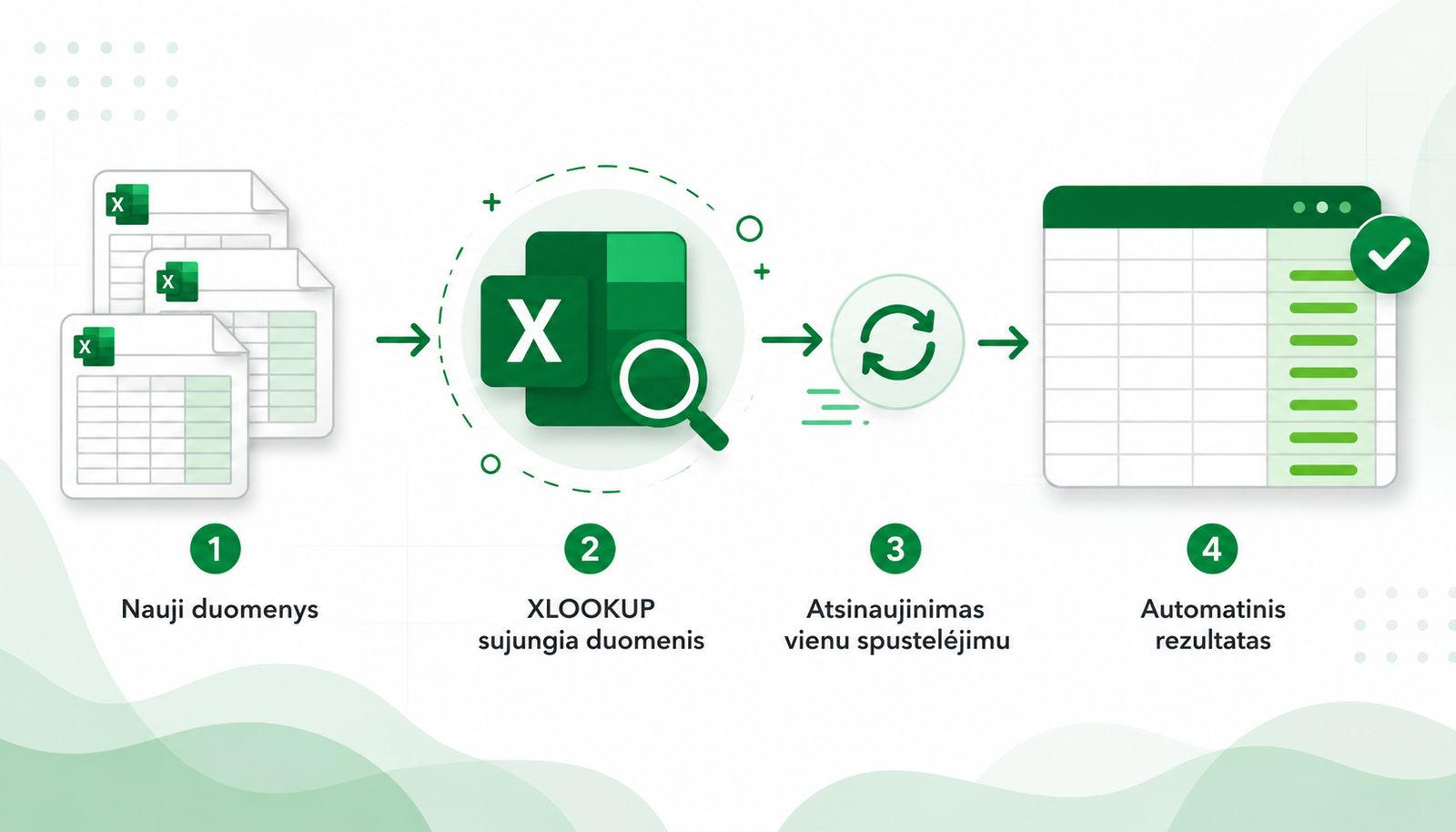
Automated table merging looks like this:
This means you do not have to recreate the merging logic every time. The key is to set up the tables and formulas correctly once.
3. XLOOKUP as the foundation
XLOOKUP can be used as the core part of automation.
The most important things:
- the formula must be applied to the whole column
- the tables must be tidy
- the ID columns must match
When these conditions are met, the results can be refreshed without extra work. This is especially useful when you regularly work with the same data sources.
If a single ID is not enough, you may need several criteria. Read more about this in the article:how to merge Excel tables with multiple criteria using XLOOKUP.
4. How to reduce the chance of errors
When automating the process, it is important to ensure consistency.
It is recommended to:
- use consistent data formats
- check for duplicates
- avoid manual fixes after the formula
- verify the results before using them in reports
If you still run into #N/A errors, it is worth reviewing the most common XLOOKUP problems:XLOOKUP not working? 3 most common causes and how to fix them.
It is also worth making sure the results are correct. We write more about this here:how to check whether XLOOKUP results are correct.
5. When XLOOKUP alone is not enough
As the amount of data grows, formulas alone may become insufficient.
In such cases it is worth considering:
- structured tables
- a clear data flow
- additional Excel tools
- Power Query or other automation solutions
But in most cases XLOOKUP is a sufficient first step toward automation. It helps you understand the logic of merging tables and prepare for more complex processes.
Why this matters
Once table merging is automated:
- you save time
- there are fewer errors
- the process becomes clear and repeatable
This lets you work not only faster, but also more reliably. Instead of constantly copying formulas, you can have a process that works consistently every time the data is updated.
Mini course on merging Excel tables with XLOOKUP
We have prepared a short mini course that clearly shows:
- how to build a stable table merge
- how to avoid errors
- how to work with real data
- how to apply XLOOKUP in practice
Want to learn how to merge Excel tables without errors?
In the mini course we show not only how to write XLOOKUP formulas, but also how to build a reliable table-merging process.
🎓 View the mini courseIf the button doesn’t work, open the course here:open the course
Power Query cheat sheet: automate your report
The key steps, the 5 common mistakes, and when automating is worth it.
- PDF · 2 pages, practical
- No spam — value only