
Power Queryis often used not only to import data, but also to tidy up text fields before analysis.
The most common text problems in Power Query:
- unnecessary spaces at the start or end
- different text formats
- several pieces of data in one cell
- messy codes, names or email addresses
Tidying up text is one of the most important parts of preparinga proper dataset.
Below are 6 steps that really save the most time.
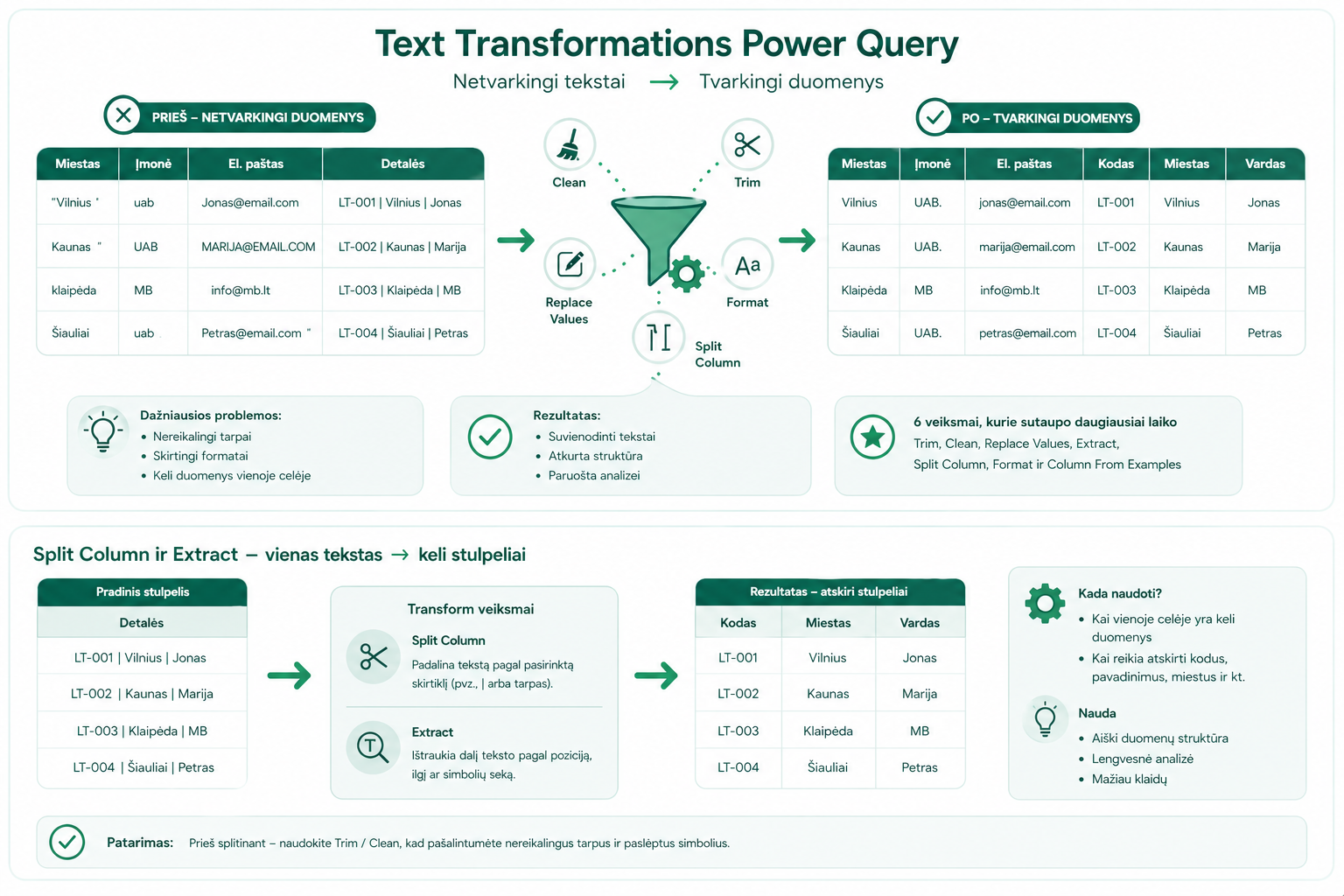
1. Trim / Clean – the first step before everything
Trim and Clean are often worth using even before other actions.
- Trimremoves unnecessary spaces at the start and end.
- Cleanremoves invisible or unwanted characters.
Select the column → Transform → Format → Trim or Clean.
2. Replace Values – when you need to standardize text
Use Replace Values when you need to replace repeating values or standardize spelling.
- “uab” → “UAB.”
- “Vilnius ” → “Vilnius”
- “N/A” → an empty value
Select the column → Right-click → Replace Values.
3. Extract – extract part of the text
Extract is useful when you need to take only a specific part from a text: the first characters, the text before a delimiter, or the text after a delimiter.
Select the column → Transform → Extract → choose a method.
4. Split Column – when one cell has several pieces of data
Use Split Column when one cell contains several pieces of data, for example a code, a city and a name.
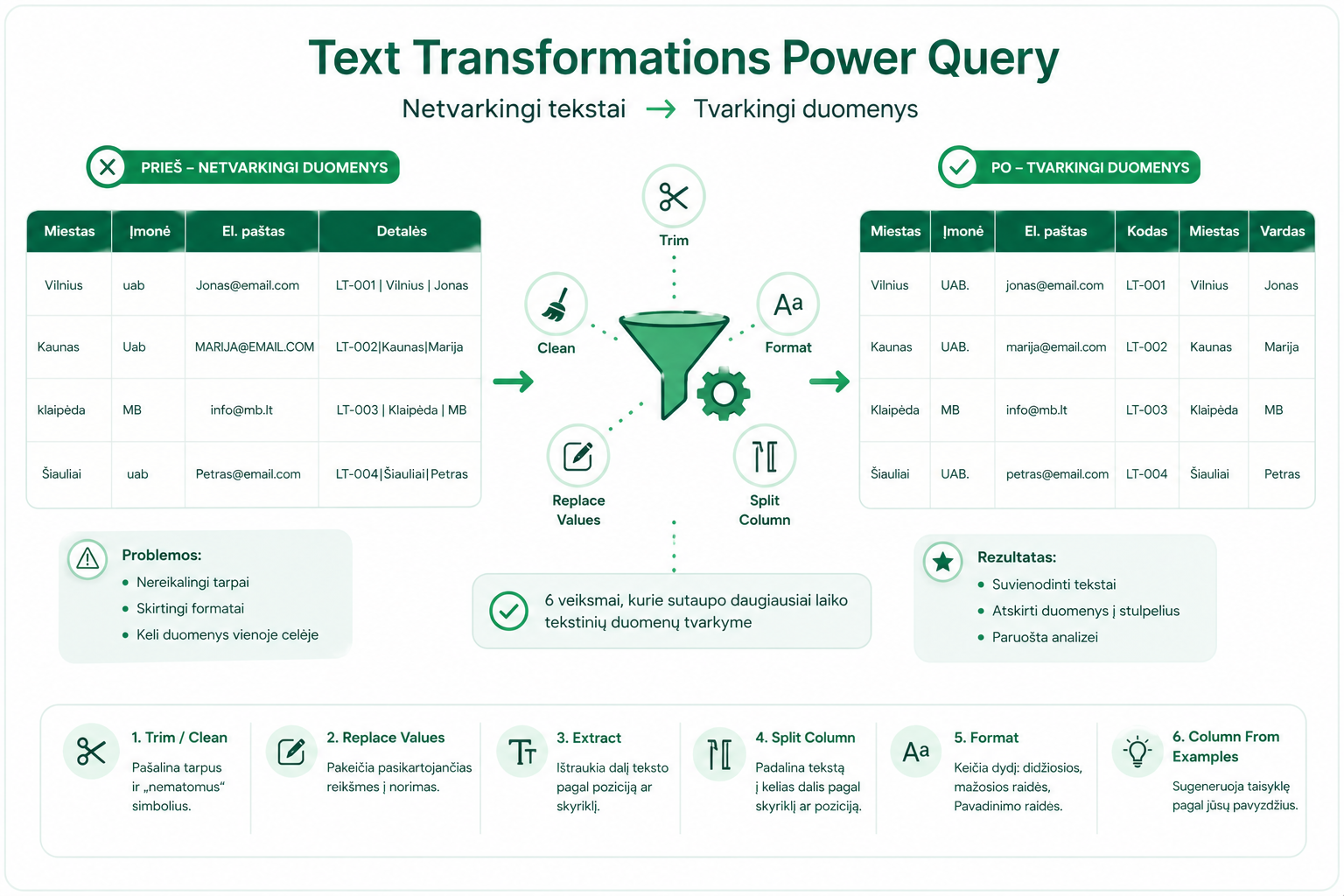
Split Column is often used together with other structure-tidying actions, similar toUnpivot and Pivot in Power Query.
Select the column → Home → Split Column → choose a method.
5. Format – uppercase and lowercase
Format actions help standardize text: convert it to lowercase, uppercase or title case.
- lowercase– all letters lowercase
- UPPERCASE– all letters uppercase
- Capitalize Each Word– each word starts with a capital letter
Select the column → Transform → Format → choose an option.
6. Column From Examples – when a rule is easier to show than to write
Column From Examples lets you enter a few examples, and Power Query itself tries to generate the transformation logic.
This is especially useful when you need to extract a name, a code or another part of text, but don’t want to write M code right away.
Home → Column From Examples → From Selection → enter examples.
Common mistakes
- forgetting to use Trim before comparing texts
- leaving different letter-case formats
- Split Column is used before removing unnecessary spaces
- data types aren’t checked after the transformations
After text transformations, it’s worth checking whether Power Query automatically applied incorrect types. More on this:Changed Type and Remove Columns pitfalls in Power Query.
Trim / Clean, Replace Values, Extract, Split Column, Format and Column From Examples cover a large part of real text-tidying problems in Power Query.
What to read next
Conclusion
Text Transformations are everyday Power Query actions that help you quickly tidy up messy text fields.
If, before analysis, you standardize text, remove unnecessary spaces and separate several pieces of data from one cell, your Power BI reports will be more accurate and reliable.
Power Query cheat sheet: automate your report
The key steps, the 5 common mistakes, and when automating is worth it.
- PDF · 2 pages, practical
- No spam — value only