
When you open Power Query for the first time, it may look like just another Excel or Power BI window. But in reality it’s a transformation environment where data is prepared for analysis.
Power Query is not just an import tool. It’s a chain of transformations: each of your actions is recorded as a step, and those steps are then repeated every time the data is refreshed.
If you’re just starting with Power Query, it’s worth first reading:what Power Query is and why it matters before analysis.
What the Power Query Editor is
The Power Query Editoris the environment where data transformations are performed: filtering, removing columns, changing types, merging tables, grouping and other actions.
The most important thing to understand is that Power Query does not change the original file. It records the sequence of actions and applies it to the data every time you pressRefresh.
What the Power Query Editor looks like
The Power Query Editor window can be understood as three main zones:
- on the left you see the queries or tables;
- in the middle you see the data preview;
- on the right you see the applied steps –Applied Steps.
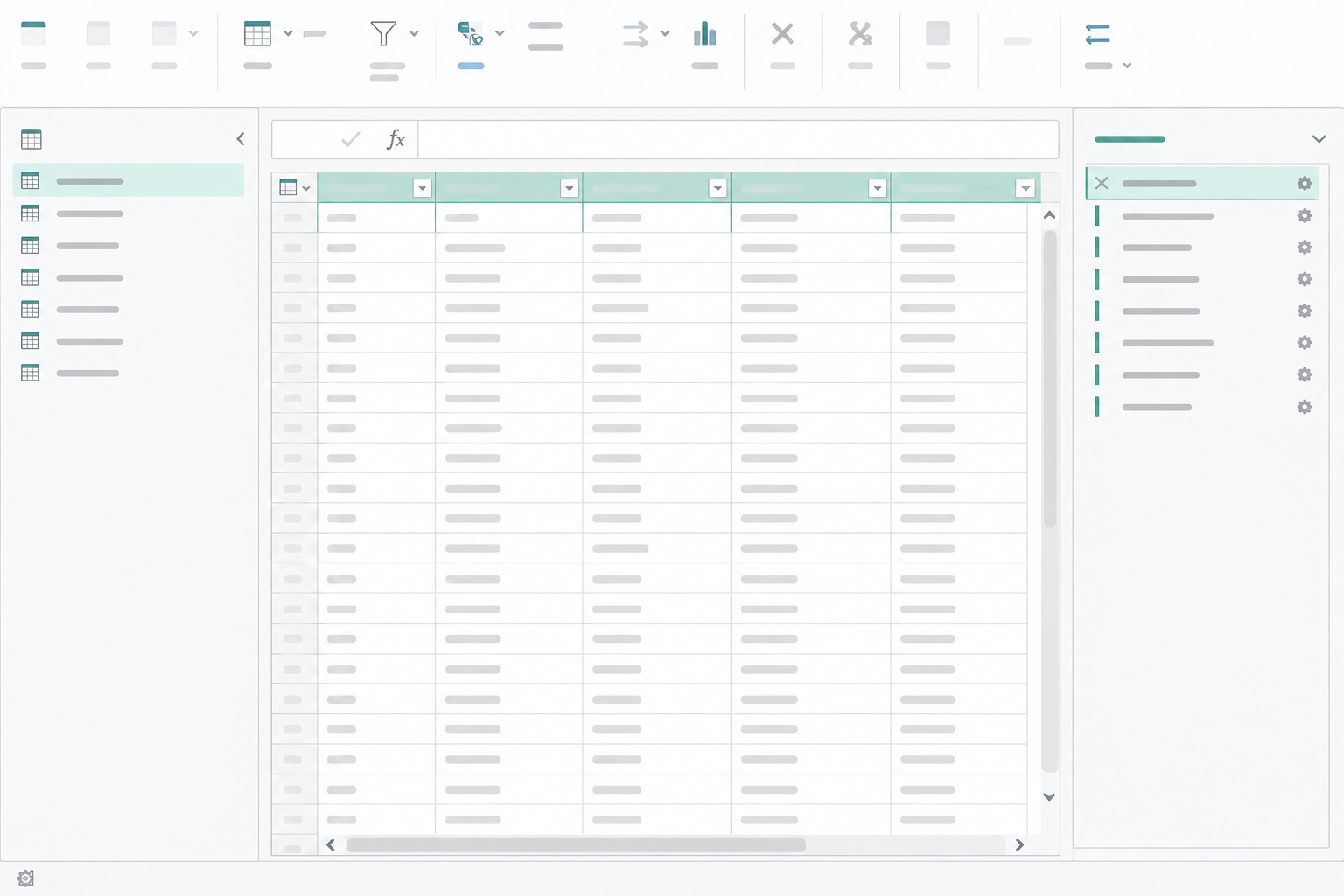
Once you understand these zones, it becomes much easier to understand where to look for errors and how the data changes after each action.
Applied Steps – the history of transformations
Applied Stepsis a list of all the transformations you’ve performed. Every action in the Power Query environment becomes a new step.
For example:
- removing a column – a new step appears;
- changing a data type – a new step appears;
- applying a filter – yet another step appears.
Applied Steps works like a chain of transformations. The steps are executed from top to bottom, and each new step builds on the previous result.
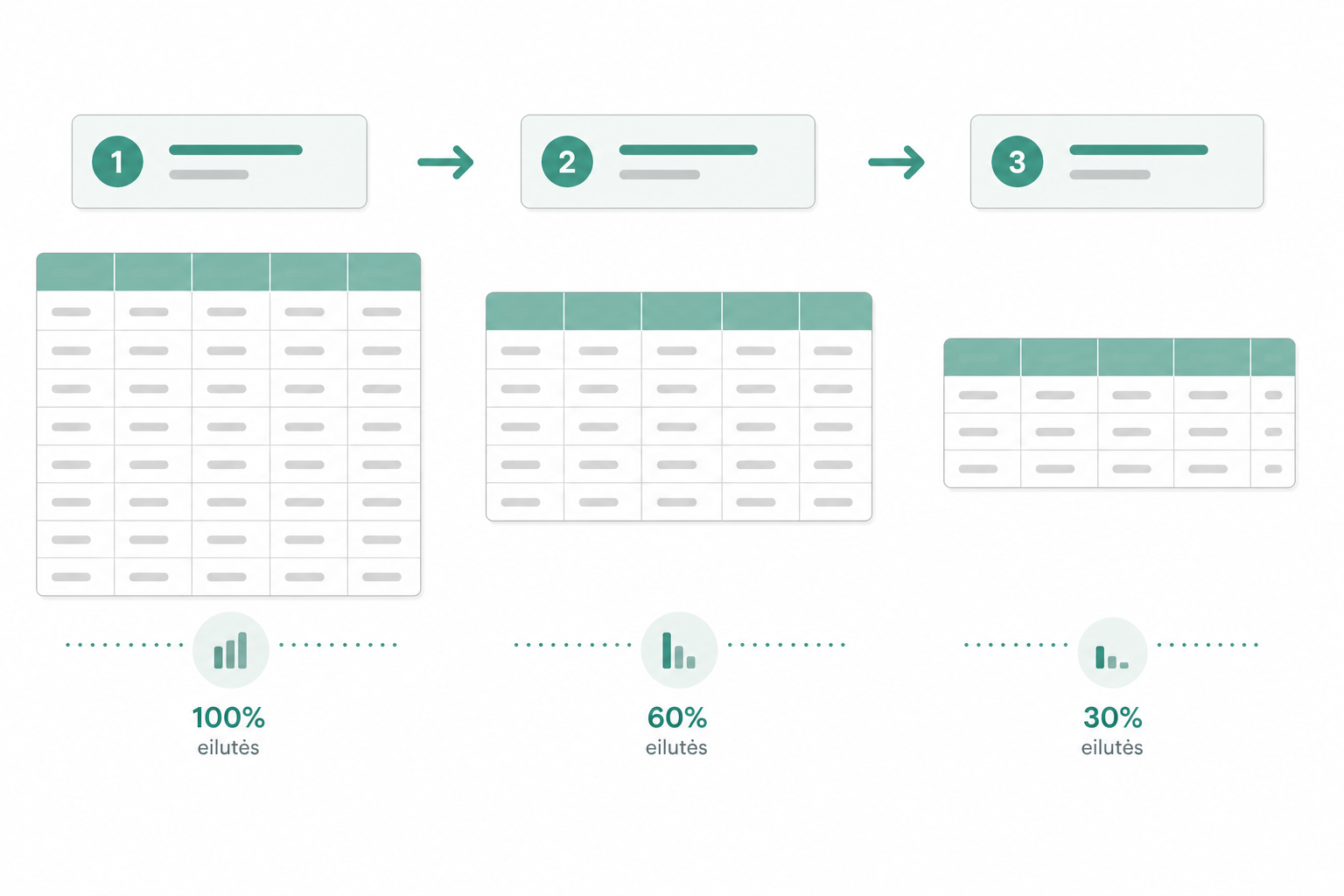
Why the order of steps matters
The order of Power Query steps matters a lot. The same action in a different place can give a different result.
For example, it’s often logical to:
- first remove unnecessary columns;
- then filter out unnecessary rows;
- and only after that change data types or perform more complex transformations.
The less unnecessary data remains in the query, the easier it is to work and the lower the chance of errors.
For this, it’s very important that the initial dataset is tidy. More on this:how to prepare a proper dataset for working in Power Query.
The Formula Bar and M code
The Formula Barshows the line of M code created for a specific step. Even if you don’t write M code manually, it’s worth looking at what appears there.
This helps you understand:
- what exactly a specific step did;
- which column names are used in the formula;
- why changing a column name can cause an error;
- how Power Query describes transformations “under the hood”.
For example, when you change a data type, Power Query creates a separate step. If the type is applied incorrectly, errors can appear later. More on this:Changed Type and Remove Columns pitfalls in Power Query.
When it’s worth editing manually
You don’t need to be able to write M code from scratch right away. But sometimes a small manual correction is faster than doing everything through the menus.
Manual editing is useful when you need to:
- change a column name in a formula;
- adjust a filter condition;
- fix a file path;
- remove or move an incorrect step;
- understand where an error appeared.
Over time you start to recognize the most common M code patterns, even if you don’t write the code yourself yet.
Why this matters
Once you understand the logic of the Power Query Editor, it’s much easier to work with more complex transformations.
For example, once you understand Applied Steps, it’s easier to understand topics such as:Group By in Power Queryor merging tables withMerge and Append.
Conclusion
The Power Query Editor becomes much simpler once you understand three things: the data preview, Applied Steps and the Formula Bar.
Applied Steps lets you see the entire history of transformations, the Formula Bar shows the logic of the M code, and the order of steps helps you understand why some actions work and others cause errors.
Once these principles become clear, Power Query is no longer a “black box” – it becomes a clear and predictable data-preparation tool.
Power Query cheat sheet: automate your report
The key steps, the 5 common mistakes, and when automating is worth it.
- PDF · 2 pages, practical
- No spam — value only